Windows Spotlight is the feature that puts a new wallpaper on your lock screen and desktop every day. When it works, it is great. Sharp photography. Interesting locations. A little “learn about this picture” link if you are curious.
When it does not work – and it often does not work – you get the same image for weeks, or a blank screen, or the default Windows 11 Bloom wallpaper that shipped when you first set up the PC. And getting it back is not a settings toggle. It is PowerShell commands, registry edits, and prayer.
The problem has been around since Windows 10 and it is still here in 2026. Here is why Spotlight breaks, why the official fixes are a roulette wheel, and what you can use instead.
The spotlight nobody wanted: a black box that goes dark
Spotlight pulls images from Microsoft’s servers, caches them locally, and cycles them on a daily schedule. The whole pipeline is opaque. No progress indicator. No error message. No settings to tweak beyond on/off. It either works or it does not, and when it stops you get no explanation.
The user reports tell the story. Across Microsoft Q&A, Reddit, Windows Forum, and ElevenForum, the same complaints appear year after year:
- “Stuck on the same image for weeks” (MS Q&A 5785705, Feb 2026)
- “Shows no picture at all or stays on the same image without ever changing” (Acer Community, Feb 2026)
- “Automatically switches to picture mode when I apply the spotlight preference and exit settings” (MS Q&A 5894700, May 2026)
- “I have tried every suggested option … This never works” (MS Q&A 5785705, Feb 2026)
- Spotlight option disappears from the lock screen menu entirely (Winhance GitHub #306, Jan 2026)
- Spotlight breaks after a Windows update, specifically KB5065789 (MS Q&A 5577475)
One user on the Acer Community, running Windows 11 25H2 on an Asus laptop, put it plainly: Spotlight “has never worked properly. I tried registry tweaks, cache deletions, and other fixes for over a year with no success.” His workaround was to install Bing Wallpaper from the Microsoft Store instead.
Another commenter in the MS Q&A 5785705 thread, who was actually trying to help, recommended a third-party app and said this about the built-in Spotlight: “23H2, 24H2, and 25H2 are the best options to replace the original until Microsoft fixes it someday.”
When the people who answer these support threads are telling you to use something else, the feature is broken.
The fix-it roulette
The official troubleshooting path for broken Spotlight looks like this:
- Toggle lock screen background from Spotlight to Picture, then back to Spotlight.
- Delete the contents of
%LocalAppData%\Packages\Microsoft.Windows.ContentDeliveryManager_cw5n1h2txyewy\LocalState\Assets. - Delete files inside the
Settingssubfolder. - Run
Get-AppxPackage -AllUsers ContentDeliveryManager | Foreach {Add-AppxPackage -DisableDevelopmentMode -Register "$($_.InstallLocation)\AppXManifest.xml"}in PowerShell. - If that does not work, try
Get-AppxPackage ContentDeliveryManager | Reset-AppxPackage. - Check registry keys under
HKEY_CURRENT_USER\Software\Microsoft\Windows\CurrentVersion\ContentDeliveryManager– verifyRotatingLockScreenEnabledandRotatingLockScreenOverlayEnabledare set to 1. - If you use a Microsoft account to sign in, try converting to a local account, running the PowerShell commands, then converting back.
- Run
sfc /scannow. - Restart and hope.
Some of these steps work for some people, some of the time, on some machines. On other machines, none of them work. On still others, the fix holds for a few days until the next Windows update resets everything.
The MS Q&A 5785705 thread is eight answers long and not a single one is a Microsoft employee with a root-cause explanation. It is users swapping troubleshooting scripts like folk remedies. That thread has been open since February 2026 and is still unresolved.
There is also a hardware angle. The Acer Community discussion notes that Spotlight behaves differently on different machines: “On my two Acer laptops, Spotlight generally works fine. … On my 2023 Asus OLED VivoBook, Spotlight has never worked properly.” The same Windows version, the same settings, but the result depends on graphics drivers, display pipeline, and apparently luck.
You should not need a PowerShell script to get a daily wallpaper
This is the part where reasonable people give up on Spotlight. Wallpaper rotation is an ambient feature. It is supposed to happen quietly in the background while you get on with your day. When keeping it running requires registry edits and PowerShell commands you have to re-apply after updates, the feature has failed.
It is also worth asking what you actually want. If you only care about Microsoft’s curated photo feed, Spotlight is the exact right fit – assuming it works on your machine. But many people just want a fresh image every day, from any good source. And for that, Spotlight is over-complicated for what it does and under-reliable for what it promises.
A daily wallpaper setup that does not break
LumoTray’s wallpaper engine gives you daily wallpaper rotation from multiple sources. You pick which ones you want and it handles the rest. No registry edits. No PowerShell. No cache folders to purge when something goes wrong.
The available sources in LumoTray include:
- Bing Daily Image: The same daily photo feed that powers Bing’s homepage. One new image every day, often with a description. If you like the look of Spotlight but want it to actually keep working, this is the closest drop-in.
- NASA Astronomy Picture of the Day: A new astronomy image every day, with a detailed caption. Sometimes a deep-field galaxy photo, sometimes a shot of the aurora from the ISS.
- Unsplash: High-resolution photography with a search function, so you can pull images by topic – landscapes, architecture, nature, urban shots – and let them rotate.
- Wallhaven: A large wallpaper community with tagged categories. Good if you want gaming wallpapers, anime, abstract art, or specific resolutions.
- Local folders and slideshows: Point at any folder on your drive and LumoTray cycles through the images inside. Works with subfolders, supports configurable intervals.
- Hexells, Color Fader, Solid Color: Procedural or static generators for when you want something abstract that never repeats the same way.
Each source can be enabled, disabled, and configured independently. You can stack Bing + Unsplash + a local folder and LumoTray will pull from all of them.
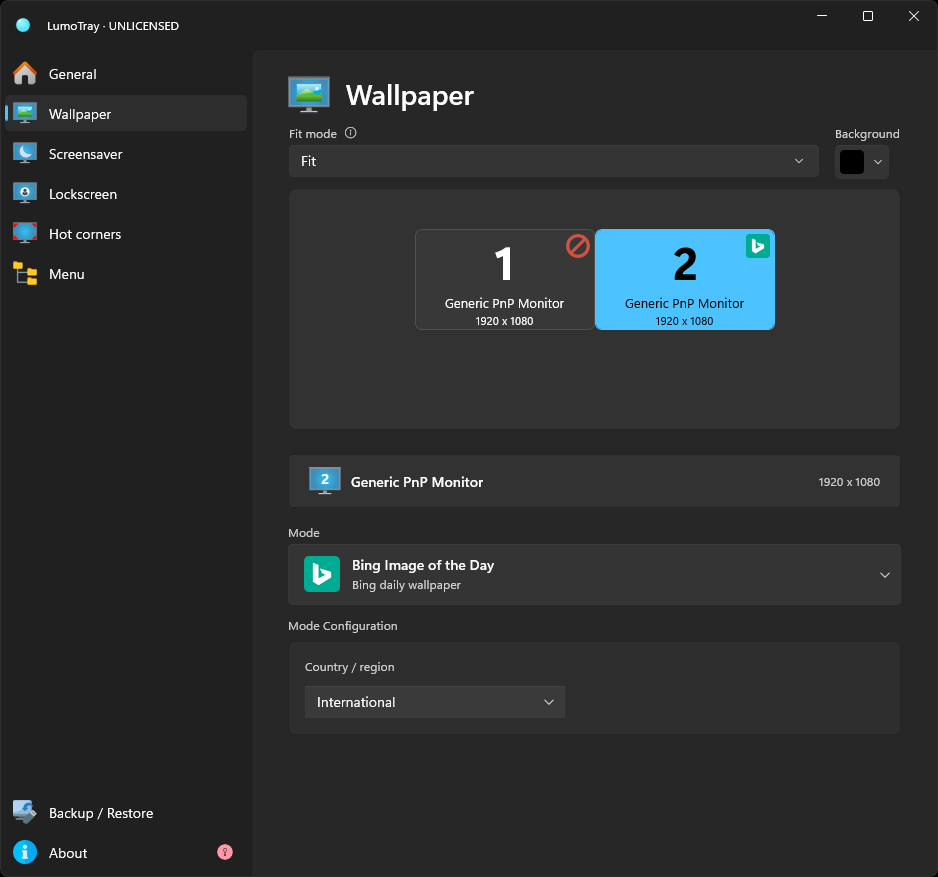
The Bing daily wallpaper source in LumoTray: enable it once and you get a new image every day, no PowerShell required.
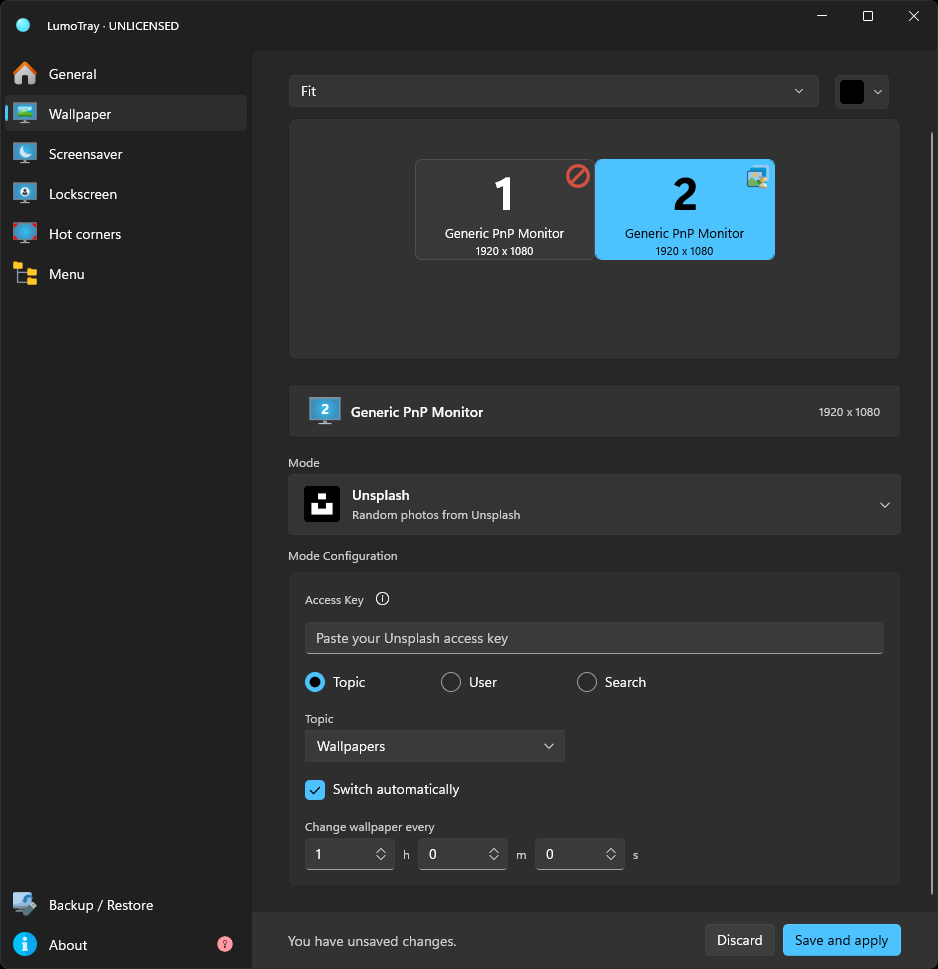
Unsplash integration lets you pull themed photography on a schedule – pick a topic, set the rotation interval, and it refreshes automatically.
If you want the Spotlight experience specifically, LumoTray also has a Windows Spotlight source. It pulls from the same Microsoft feed, but it does not depend on the system-level Content Delivery Manager that keeps breaking. Same images, different delivery pipeline.
Per-monitor, always
One thing Spotlight has never been able to do is per-monitor wallpaper control. If you have two screens, Spotlight puts the same image on both. LumoTray lets you assign different wallpaper sources to each monitor – a setup we covered in detail in our multi-monitor wallpaper guide. You can have Bing Daily on your left screen, Unsplash landscapes on your right, and a slideshow of personal photos on a third.
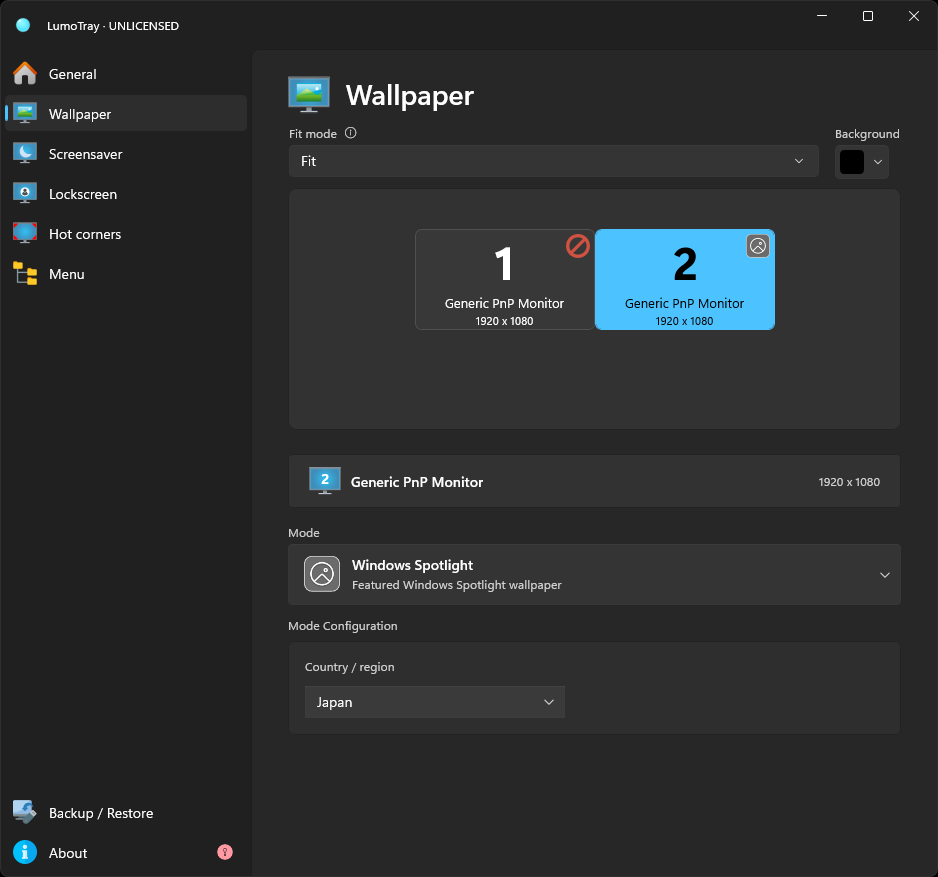
The wallpaper sources panel in LumoTray. Each source runs independently, and they do not silently stop when Windows updates.
Setup takes under a minute
- Open LumoTray, go to the Wallpaper tab.
- Click Add source and pick Bing Daily Image (or Unsplash, or APOD).
- For per-monitor setups, click the monitor icon next to each source and assign it to a specific display.
- Optionally adjust the rotation interval – daily is the default, but you can set anything from 10 minutes to several hours.
- Close settings. That is it.
There is no step 6 where you open PowerShell. There is no step 7 where you delete cache folders and cross your fingers. The wallpaper updates on its own and stays working unless you disable it.
What you are giving up
Spotlight has one feature LumoTray does not replicate: the lock screen overlay with the “like what you see?” prompt and the hover-to-learn-more card. LumoTray sets your desktop wallpaper, not your lock screen. If you specifically want lock screen images with the interactive overlay, this is not a direct replacement for that part.
For everything else – daily desktop wallpaper from high-quality sources, per-monitor control, and a setup that survives updates without a fight – LumoTray covers it.
LumoTray is a Windows desktop customization app that handles wallpaper management, screensavers, hot corners, and custom tray menus. It works on Windows 10 and Windows 11 and supports multiple monitors.