Windows 11 can handle a basic multi-monitor wallpaper setup, but it gets awkward as soon as you want more than one static picture.
If you only want one image on the left monitor and another image on the right monitor, the built-in settings may be enough. If you want separate slideshows, different sources per screen, a live webpage on one monitor, a clock on another, or a setup that does not need fiddling after every display change, you will probably want a dedicated wallpaper tool.
This guide covers both routes: the Windows 11 way first, then the cleaner LumoTray way.
The built-in Windows 11 method
For a simple static wallpaper setup:
- Right-click the desktop and choose Personalize.
- Open Background.
- Set Personalize your background to Picture.
- Browse for the image you want to use.
- Right-click the image under recent images.
- Choose Set for monitor 1, Set for monitor 2, or whichever monitor you want.
Microsoft’s own desktop background help says Windows can set the same picture for all displays or a different picture for each display when the background type is Picture. It also notes the obvious limitation: the option is not available when you are using multiple virtual desktops.
That is fine for a simple setup. It is not much of a wallpaper manager.
Where Windows 11 starts to feel limited
The rough edges usually show up when you try one of these:
- A separate slideshow folder for each monitor.
- A slideshow that changes every monitor at the same time.
- One static image on one display and a rotating folder on another.
- A different source on each monitor, such as a local image on one screen and Windows Spotlight on another.
- A wallpaper setup that survives sleep, display reconnects, and monitor order changes.
- Video, webpage, PDF, or clock-style wallpapers.
Microsoft’s support page says Windows slideshow mode can show different pictures on each screen from the selected folder, but it does not give you much control beyond that. A Microsoft Q&A thread from 2025 has the same practical answer: Windows 11 does not include a built-in setting to keep slideshow images synced across multiple displays.
That matches the complaint you see from real users: the built-in path exists, but it is narrow.
A cleaner approach with LumoTray
LumoTray treats each monitor as something you can configure directly.
Instead of picking one global background mode and hoping Windows applies it the way you meant, you choose the display, choose the mode for that display, and set the details there.
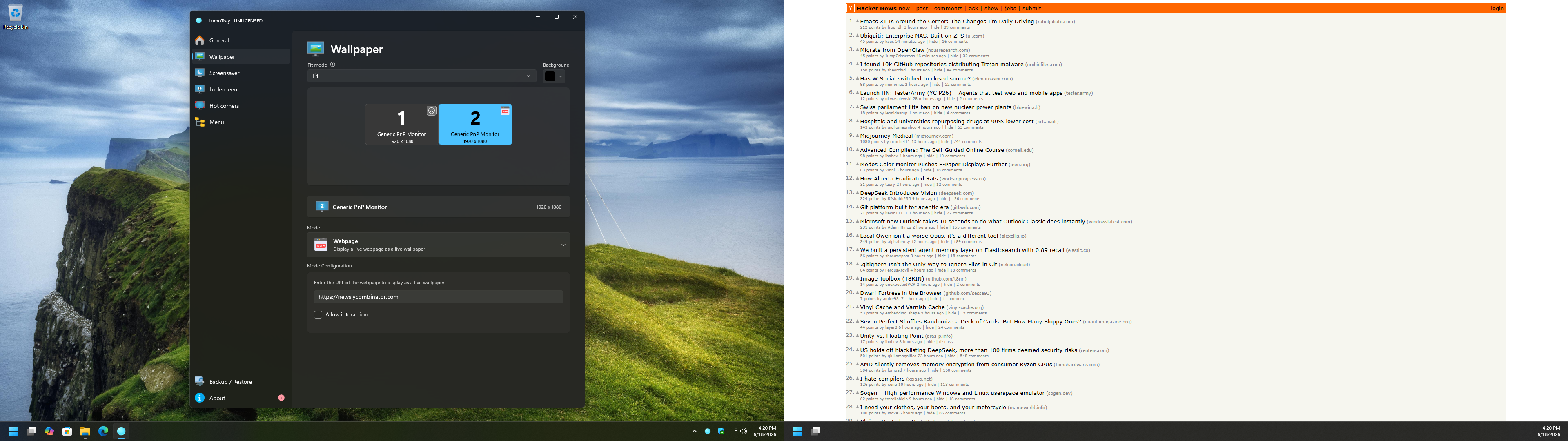
That matters because a multi-monitor setup is rarely symmetrical. A common desk has one main display, one side monitor, and maybe a laptop screen. Those screens may have different sizes, different orientations, or different jobs.
For example:
- Put a calm static image on the main display.
- Use a slideshow folder on the second monitor.
- Show a live webpage or dashboard on a spare screen.
- Use a clock-style screensaver setup when the machine is idle.
- Keep wallpapers separate without digging through Windows settings every time.
Setting a single image for one monitor
In LumoTray:
- Open LumoTray from the system tray.
- Go to Wallpaper.
- Select the monitor you want to configure.
- Set Mode to Image.
- Browse for the image file.
- Choose the fit mode that looks right for that screen.
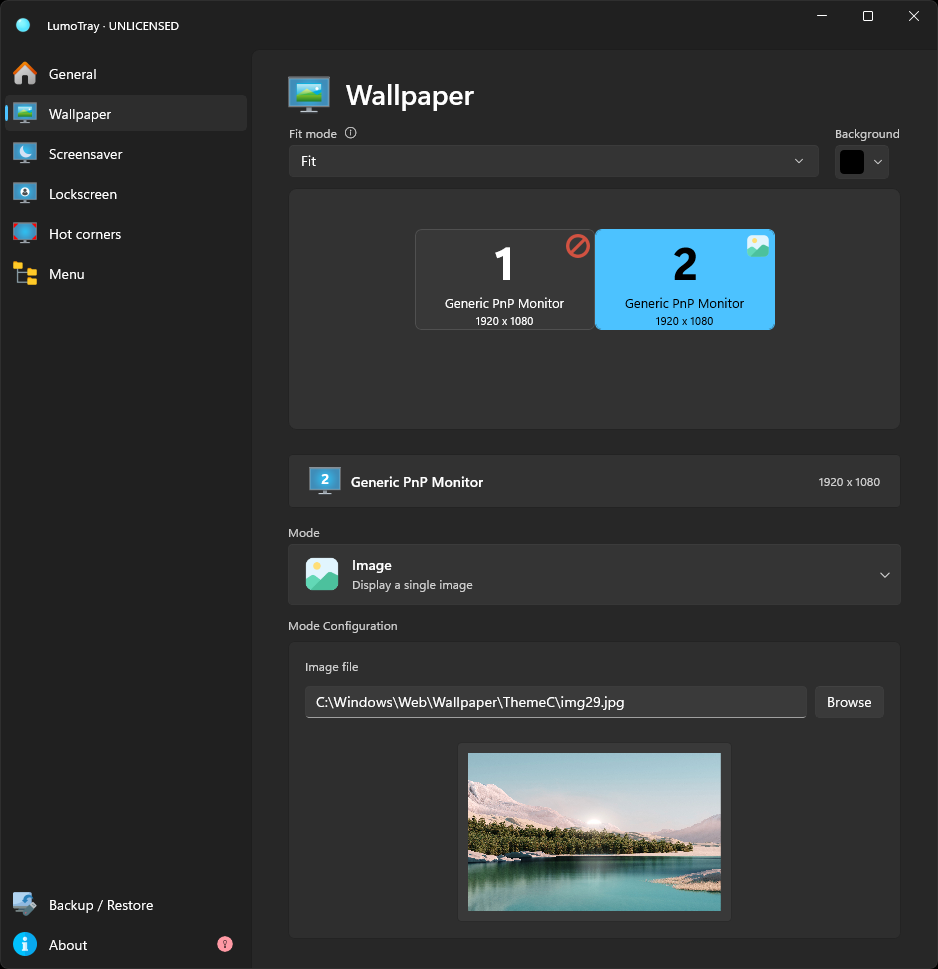
This is the direct replacement for Windows’ built-in “set for monitor” flow. The difference is that the monitor selection stays visible, so it is harder to forget which screen you are editing.
Setting a slideshow for one monitor
For a rotating wallpaper folder:
- Select the monitor.
- Set Mode to Slideshow.
- Pick the image folder.
- Set the change interval.
- Choose whether to include subfolders.
- Turn shuffle on or off.
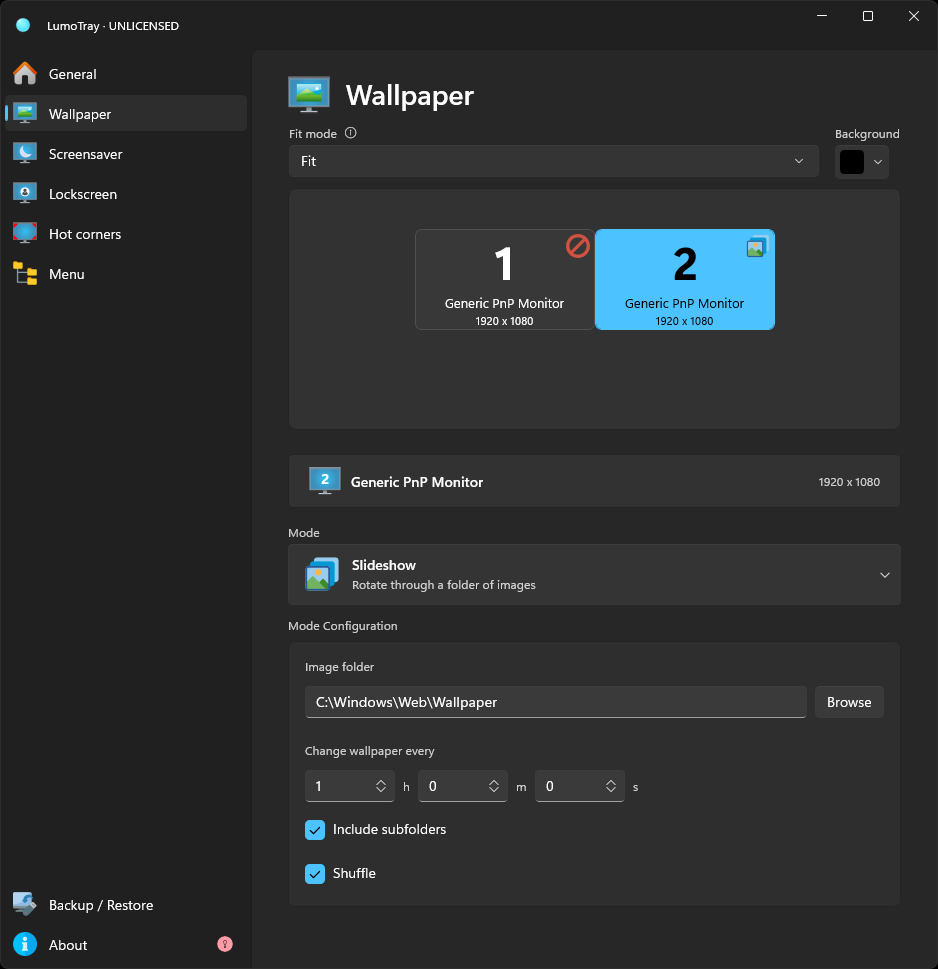
This is useful if you have different folders for different screens. Work photos on one display, abstract backgrounds on another, product screenshots on a spare monitor, that sort of thing.
Using more than normal image files
The bigger difference is that LumoTray is not limited to static picture and basic slideshow behavior.
Depending on what you want on a display, you can use modes such as:
- Single image
- Slideshow folder
- Solid color
- Windows Spotlight
- Bing image
- Unsplash
- Wallhaven
- NASA APOD
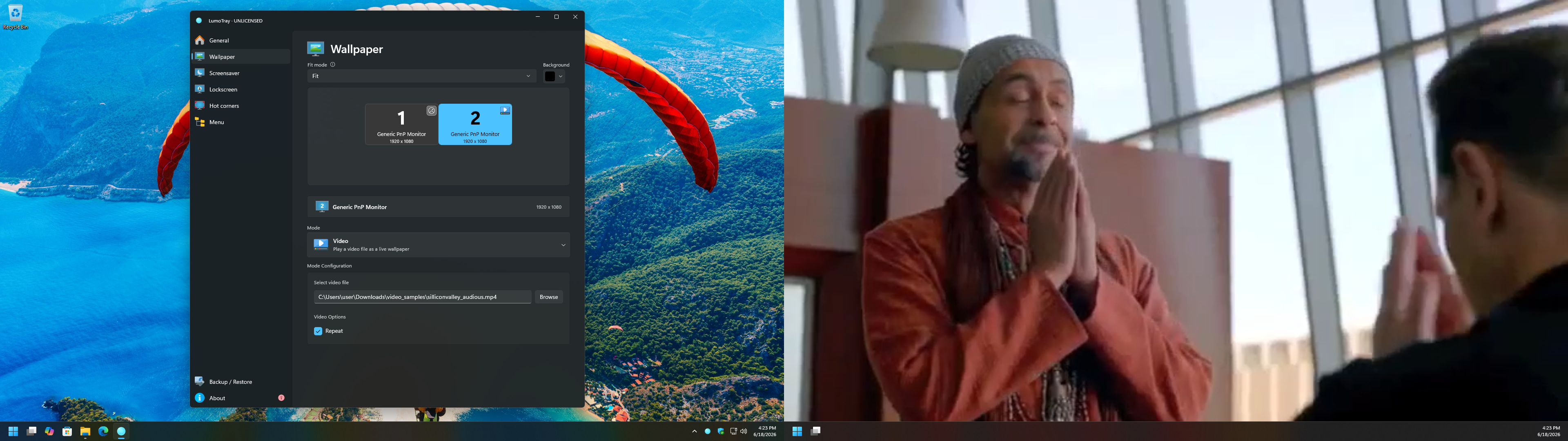
- Webpage
- Video
- Video playlist
- Color fader
- Matrix
- Hexells
Not every monitor needs the same kind of wallpaper. A side display can be a webpage. A TV connected to the PC can show a video playlist. A main work screen can stay quiet with a single image.
When should you use Windows settings instead?
Use the built-in Windows 11 settings if:
- You only need one static image per monitor.
- You rarely change wallpapers.
- You do not care about separate sources or per-monitor slideshow control.
- Your setup does not change often.
Windows already covers that case. There is no need to add another tool for a one-time wallpaper change.
Use LumoTray if:
- You change wallpapers often.
- You have two or more monitors doing different jobs.
- You want a slideshow on only one screen.
- You want live or source-based wallpapers.
- You want a system tray tool instead of digging through Settings.
- You also want lock screen images, screensavers, hot corners, or a custom tray menu in the same app.
Quick troubleshooting notes
If Windows or any wallpaper app keeps applying the wrong image to the wrong monitor, check these first:
- Make sure Windows is set to Extend these displays, not Duplicate these displays.
- Confirm the monitor order in Settings > System > Display.
- Check whether a virtual desktop is active, since Windows handles backgrounds differently there.
- If a laptop dock is involved, reconnecting displays can sometimes change the monitor IDs Windows reports.
- If one display is vertical and another is wide, use separate images with matching aspect ratios where possible.
Multi-monitor wallpapers sound simple until the setup changes. Once you have different screen sizes, different sources, and different jobs for each display, a dedicated control panel saves time.
If you want that control from the tray, download LumoTray and try the Wallpaper page first. It is the quickest way to see whether the app fits your setup.