Windows 11 still has screensavers. They are the same screensavers Windows XP had. Bubbles. Mystify. Ribbons. 3D Text. Photos. Blank.
Microsoft has not added a new one in nearly two decades. The settings dialog – a small, grey-bordered window you reach through Settings > Personalization > Lock screen > Screen saver – is the same Win32 dialog from the Windows 2000 era. When you open it, you are looking at a museum artifact, not a feature Microsoft cares about.
And yet here we are in 2026, and people still want screensavers. Not for the original reason. Old CRT monitors needed moving pixels to prevent phosphor burn-in, but modern LCD and OLED panels do not work that way. The purpose has shifted. Screensavers are now about ambient personalization: what your screen shows when you step away, what greets you when you walk back into the room, what gives your workspace a bit of mood instead of a black void.
The problem is that the gap between what people want and what Windows ships has been left to a handful of third-party tools – some good, some ancient, and some unsafe.
What Windows 11 actually gives you
Open the Screen Saver Settings dialog and you get six options. Five if you do not count Blank.
- 3D Text: Type some words, pick a font, and watch them spin and bounce. Unchanged since Windows 95.
- Bubbles: Translucent spheres float across the screen. The one Microsoft recently patched for high-refresh-rate monitors in a Canary Insider build – the first attention the Bubbles screensaver has received in years.
- Mystify: Multi-colored lines draw geometric patterns. Pure 1995 energy.
- Ribbons: Curving, overlapping ribbons sweep across the screen. Also 1995.
- Photos: A slideshow from a folder you pick. This one is actually useful, but it is bare-bones. No transitions beyond a simple crossfade. No multi-monitor awareness. No integration with any modern photo service.
- Blank: A black screen. Honest, but not exactly what anyone installs a screensaver for.
That is it. There is no clock option. No weather visualization. No integration with Windows Spotlight images. No audio visualization. No way to show live data, remote camera feeds, artwork collections, or satellite imagery. Windows 11 has a lock screen that can do widgets, weather, and dynamic backgrounds – but once the screen goes to screensaver mode, you are back in a time capsule.
Why people keep asking for better screensavers
The evidence is not hard to find. Reddit threads like “Why is the screensaver on Windows 11 still not updated, it feels ancient” and “The screensaver settings have looked like this for the last 20 years” keep surfacing. A Windows Central piece from June 2026 called screensavers “a 90s feature Microsoft never bothered to remove”. A Windows Forum analysis from the same month asked whether their survival was “a clue to idle mode gaps.”
The demand has three sources:
-
Multi-monitor setups. More people have dual and triple displays than in the XP era. A screensaver that spans all monitors identically feels like a missed opportunity. People want a clock on the secondary display. A slideshow on the third. Nothing on the primary while they glance at the others.
-
Remote and hybrid work. When your home office has a monitor sitting idle for hours, a black screen is forgettable. A rotating artwork collection or a live Earth view makes the room feel less dead.
-
Screens as ambient surfaces. Wall-mounted displays, secondary monitors on standing desks, laptop lids left open on kitchen counters – screens are in more places, and people want them to show something when they are not actively in use.
The problem with random .scr files
There is a long tail of free screensavers on the internet. Fliqlo (flip clock). Electric Sheep (fractal animations). Lattice (Matrix code rain). Plane9 (audio visualizer). Really Slick Screensavers (classic 3D effects). Skyrocket (fireworks).
Some are genuinely good. But downloading a screensaver means downloading an executable file – an .scr is just an .exe with a different extension – from websites that often look like they have not been updated since 2008. Screensavers have full access to your system while running. A malicious or poorly-coded .scr can do real damage.
Even the safe ones come with friction. Most need manual installation into C:\Windows\System32. Many break on high-DPI displays or newer GPU drivers. Few support multi-monitor setups properly. Almost none receive active updates.
WindowsReport and Softorino both published “best screensavers for Windows 11 in 2026” lists. Neither mentioned any tool that does wallpaper management, hot corners, tray menus, and screensavers in one place. The market is fragmented: one tool for clocks, another for photos, another for visual effects, and a heavy multi-monitor suite for per-display control.
What a modern screensaver should look like
Let us define the bar. A screensaver in 2026 should:
- Display something better than spinning text from the Windows 95 era.
- Pull content from live sources: artwork, satellite imagery, curated photo collections, personal media.
- Respect multi-monitor setups instead of treating them as one canvas.
- Not require you to run random executables from download mirrors.
- Integrate with the rest of your desktop customization instead of being a disconnected bolt-on.
That sounds like a lot, but it is really just the gap between what Windows 11 ships and what users have been asking for on Reddit and forums for years.
How LumoTray handles screensavers
LumoTray treats screensavers as a first-class feature, not an afterthought. The same wallpaper sources you use for your desktop can also run in screensaver mode. When the idle timer fires, LumoTray can switch any of its wallpaper modes into fullscreen – no separate .scr file, no separate configuration dialog.
Here is what that means in practice.
Museums mode
A rotating collection of paintings and sculptures pulled from museum collections around the world. Each refresh brings a new piece. You can use it as your desktop wallpaper, your lock screen background, or let it take over when the screensaver activates.
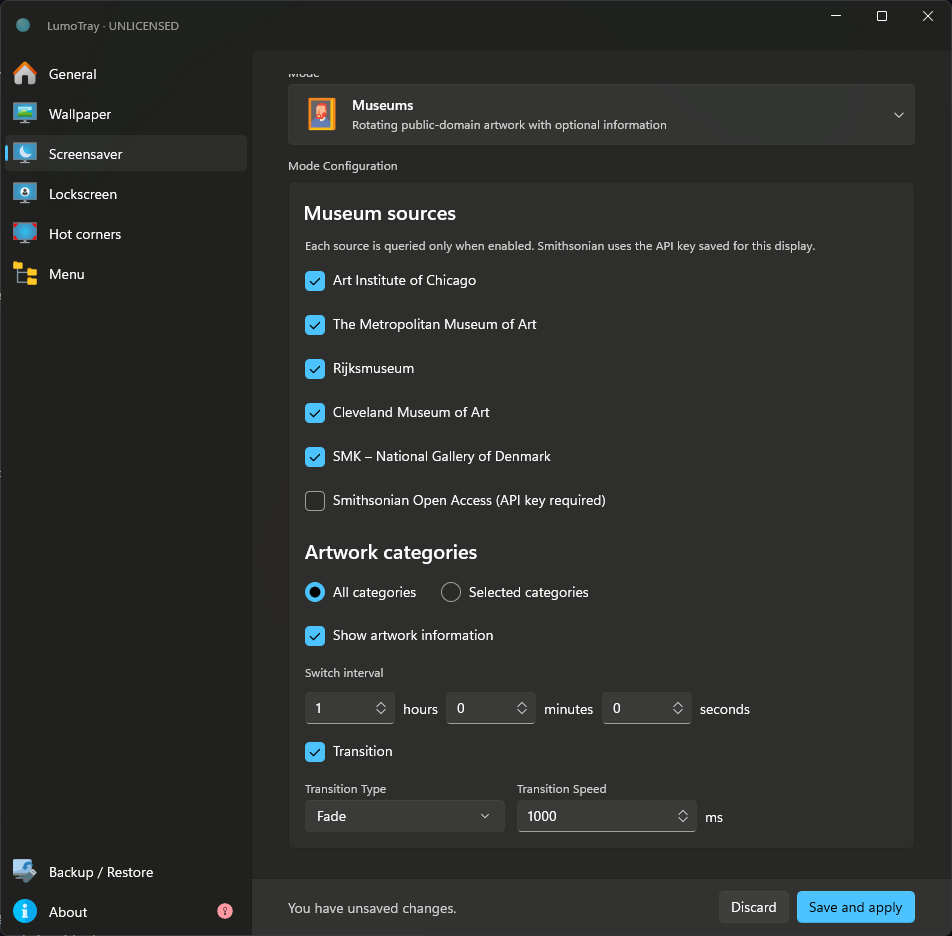
This is the kind of idle-screen experience that makes a room feel intentional. Your monitor becomes a rotating gallery instead of a black rectangle.
NASA EPIC mode
Live full-disc imagery of Earth from NASA’s DSCOVR satellite, updated daily. You can show the latest image or a timelapse spanning up to a week.
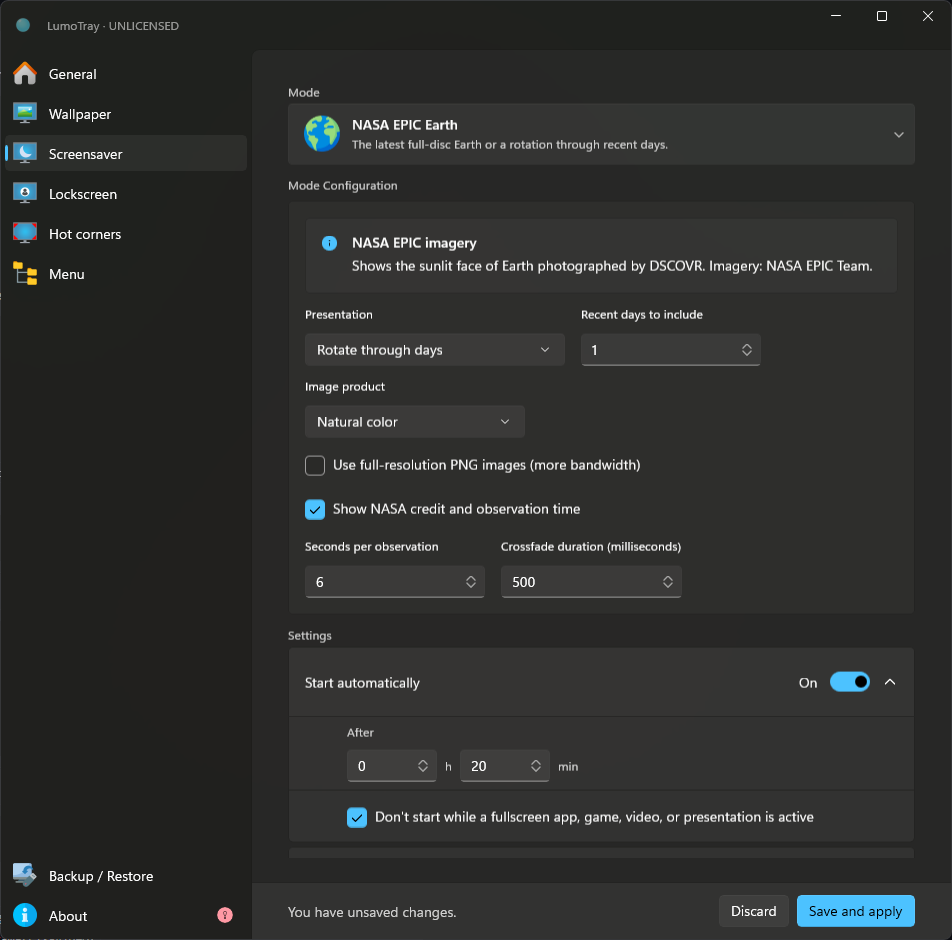
It is one thing to have an Earth wallpaper. It is another to watch it rotate slowly while you make coffee. It makes your setup feel connected to something real.
Matrix video mode
The green code rain from the Matrix films, running over a video background of your choice. Pick an mp4 or webm clip – anything LumoTray supports for live wallpapers – and the Matrix effect layers on top.
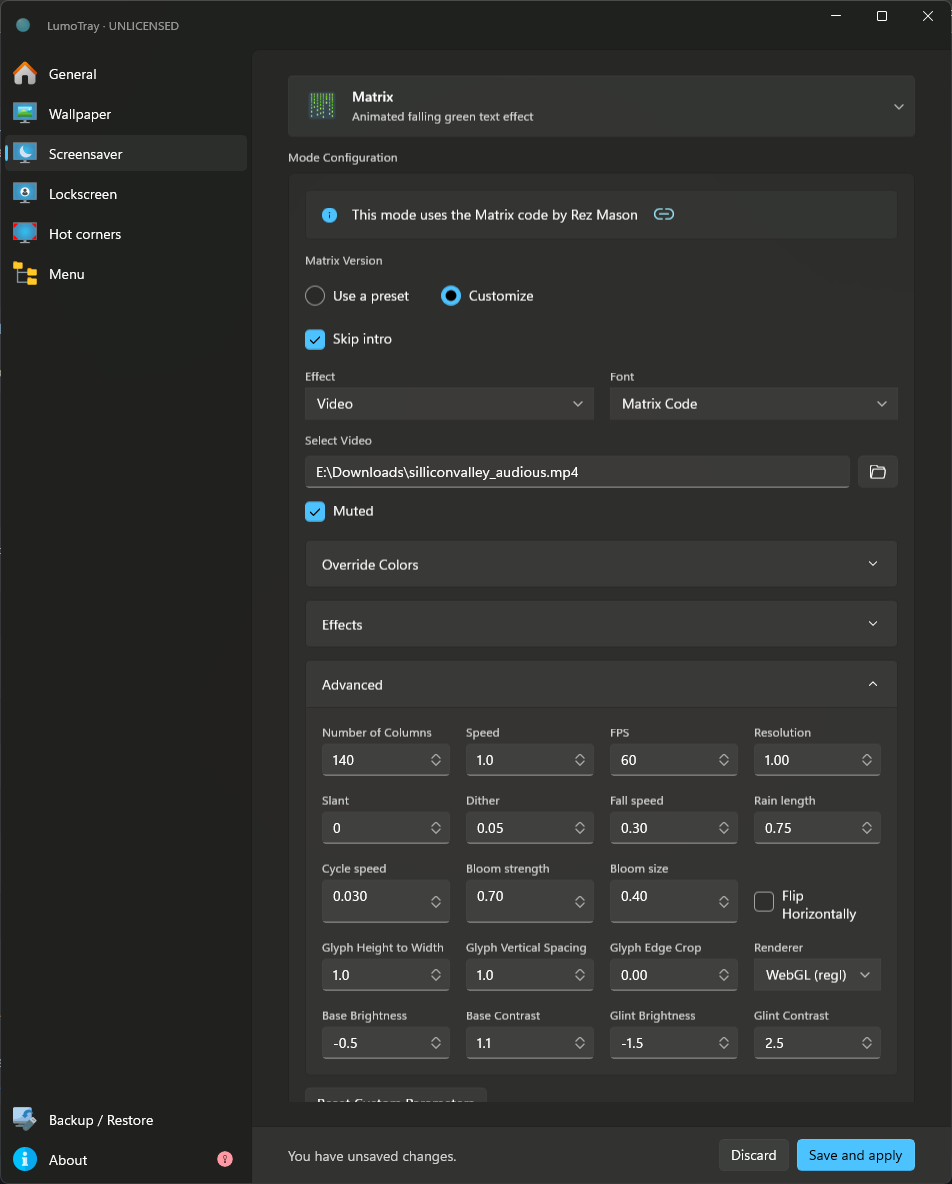
This one is mostly for fun, but it is a conversation starter in a way Bubbles never was.
Slideshows from modern sources
LumoTray’s screensaver mode also works with its other wallpaper sources: Unsplash, Wallhaven, Bing daily images, Astronomy Picture of the Day, local video playlists, local image folders, PDF pages, web pages, and solid colors with gradients. Any of these can transition into screensaver mode when the system goes idle.
That means you can set your desktop to a clean solid color, and when you step away for five minutes, LumoTray fires up a curated slideshow from Unsplash or your own photo library.
Per-monitor screensaver control
Windows spans a screensaver across all monitors. LumoTray can restrict it to specific displays. Set a clock screensaver on your secondary monitor. Run a NASA feed on a wall-mounted third display. Keep your primary monitor dark or set to a shorter idle timeout.
We wrote a separate guide on how to run a screensaver on only one monitor, which covers the per-monitor setup in detail.
Screensaver prevention per display
LumoTray 2.2.0 added a toggle to prevent screensavers from activating on a monitor when a fullscreen app, game, video, or presentation is running on that display. This solves the classic problem: you are watching a movie on your secondary monitor, the screensaver timer fires, and suddenly the Matrix rain is running over your film. With the toggle on, LumoTray skips that display.
Setting it up
The screensaver integration lives in LumoTray’s wallpaper settings. Here is the basic flow:
- Open LumoTray and go to the Wallpapers tab.
- Pick a source for each monitor – Museums, NASA EPIC, Matrix, Unsplash, a local folder, whatever fits.
- Under the wallpaper source settings, enable Fullscreen / Screensaver mode.
- Set your idle timeout. LumoTray uses its own timer, independent of the Windows screensaver dialog, so you do not need to touch the legacy settings at all.
- Optionally, set per-monitor behavior: which displays get the screensaver, which get blocked during fullscreen content.
LumoTray’s wallpaper engine handles the transition. When the timer fires, the current wallpaper source expands to fullscreen on the selected monitors. Move the mouse or press a key, and it fades back to your normal desktop. No .scr files. No System32 folder. No registry edits.
Why this beats the old way
The traditional screensaver workflow – find a .scr, install it to System32, open the legacy dialog, pick it from a dropdown, hope it does not crash on a 4K display – is fragile. It worked twenty years ago because there were no better options.
A modern desktop customization tool should handle screensavers the same way it handles wallpaper: pick a source, set a timer, and trust that the tool knows what to do with multiple monitors. That is the model LumoTray uses. The screensaver is not a separate app you bolt on. It is an idle-state view of the same wallpaper engine that runs your desktop.
If you already use LumoTray for wallpaper management or hot corners or tray menus, the screensaver features come along with the same install. Nothing extra to download. Nothing extra to configure in a separate dialog from another decade.
What about the competition?
DisplayFusion can do per-monitor screensavers, plus taskbars, wallpaper, window management, and monitor profiles. It is a capable tool, but the Pro license starts at $34 and the feature set is built for power users who need window management and monitor profiles above everything else. The screensaver piece is one module among many.
Fliqlo gives you a beautiful flip clock. That is all it does, and it does it well. But it is a single-purpose screensaver – no multi-monitor awareness, no content rotation, no integration with anything else on your desktop.
Actual Multiple Monitors targets enterprise setups and is priced for IT departments, not individual users.
gPhotoShow Pro ($19.95) makes excellent photo and video slideshow screensavers with multi-monitor support. If photo slideshows are your only need, it is worth a look.
The common thread: each tool does one thing or one category of things, and none of them tie screensavers into wallpaper management, hot corners, and system tray customization in one package.
LumoTray is not trying to be DisplayFusion. It is not trying to be Fliqlo. It is filling a specific gap: modern, content-rich screensavers that work across multiple monitors without separate configuration, bundled with the rest of your desktop personalization in a single lightweight app.
One last thing
Screensavers are one of those Windows features that everyone assumes is dead, but the demand has not gone anywhere. Microsoft clearly has no plans to modernize them – the Bubbles patch in a Canary build is a bugfix, not a feature investment. The lock screen has absorbed a lot of the ambient personalization energy, but it is a locked surface. You cannot glance at it without the implication that you need to sign back in.
A good screensaver is different. It is idle, not locked. It shows something while you are away without making you authenticate just to look at it. That distinction still matters for a lot of setups: home offices, shared family PCs, secondary monitors, wall-mounted displays that are not security-sensitive.
If you have been putting up with Bubbles since 2001, there are better options now.