PowerToys keeps getting better for multi-monitor setups. The last two releases – 0.99 in April and 0.100 in June 2026 – both added features aimed squarely at people with more than one screen. Power Display brings monitor brightness and contrast controls into the Windows system tray. A new multi-monitor Dock arrived with Command Palette. Wrap mode lets your cursor jump across screen edges instead of hitting a wall. Power Display got faster startup, better monitor detection, and a Max Compatibility Mode for stubborn displays.
If you run a multi-monitor setup on Windows 11, PowerToys is probably already on your machine. The question that comes up is: with all this multi-monitor attention from Microsoft, do you still need a dedicated desktop personalization tool?
The short answer: PowerToys and LumoTray solve different halves of the problem. They do not overlap much, and they run fine side by side. Here is where each one fits.
What PowerToys actually covers for multi-monitor
PowerToys is a utility suite – it fixes annoyances and adds power-user features that Windows should ship with. For multi-monitor specifically, here is what it does as of v0.100:
Power Display (v0.99+). This is the standout. It talks to your monitors over DDC/CI and gives you software control over brightness, contrast, volume, colour temperature, input source, and power state. You get a system tray flyout instead of reaching around the back of your display to press physical buttons. PCWorld called it a fix for something Windows should have handled years ago. Profiles let you save different settings per display. The catch: some Thunderbolt and USB-C docking setups do not pass DDC/CI cleanly, so your mileage varies.
FancyZones. The window layout tool. Define zones on each monitor and snap windows into them. Especially useful on ultrawides or mixed-resolution setups where the built-in Snap layouts feel too rigid.
Wrap mode (v0.100+). When your cursor hits the edge of your active monitor, it wraps to the opposite side instead of stopping. Handy if you run monitors in a vertical stack or a wide horizontal spread and want to cut down on mouse travel.
Multi-monitor Dock (v0.100+). Command Palette’s Dock now shows independently on each monitor. You can pin different commands, system metrics, and widgets per screen.
Mouse Without Borders. Lets you share one mouse and keyboard across multiple PCs, as long as they are on the same network. More of a KVM replacement than a display tool, but common in multi-monitor setups that involve more than one machine.
Grab and Move (v0.99+). Hold Alt and click anywhere inside a window to drag it, or Alt+right-click to resize. Solves the problem of hunting for the title bar on a window buried under tabs and toolbars.
None of these deal with what is actually on your screens. They handle window placement, monitor hardware, mouse behaviour, and keyboard shortcuts. That is the utility layer.
What PowerToys does not touch
Microsoft has been clear about PowerToys’ scope. The team builds power-user utilities – keyboard managers, window layout editors, monitor control panels. They have never shipped a wallpaper manager, a screensaver tool, a hot corners engine, or a tray menu builder. Those belong to a different category: desktop personalization.
Here is what PowerToys does not cover, and likely never will:
- Setting a different wallpaper on each monitor, let alone live wallpapers, slideshows, or online wallpaper sources.
- Running different screensavers on different monitors, or using screensavers as visual displays (clocks, slideshows, NASA feeds).
- Hot corners – moving your mouse to a screen corner to trigger an action like locking the screen, starting a screensaver, or launching an app.
- Custom system tray menus with your own apps, files, scripts, and separators.
- Lock screen image customization beyond what Windows Settings offers.
- Windows Spotlight image management or wallpaper rotation from online sources.
These are not oversights. PowerToys is not a personalization suite, and the team has not signalled any intention to make it one.
Where LumoTray fits
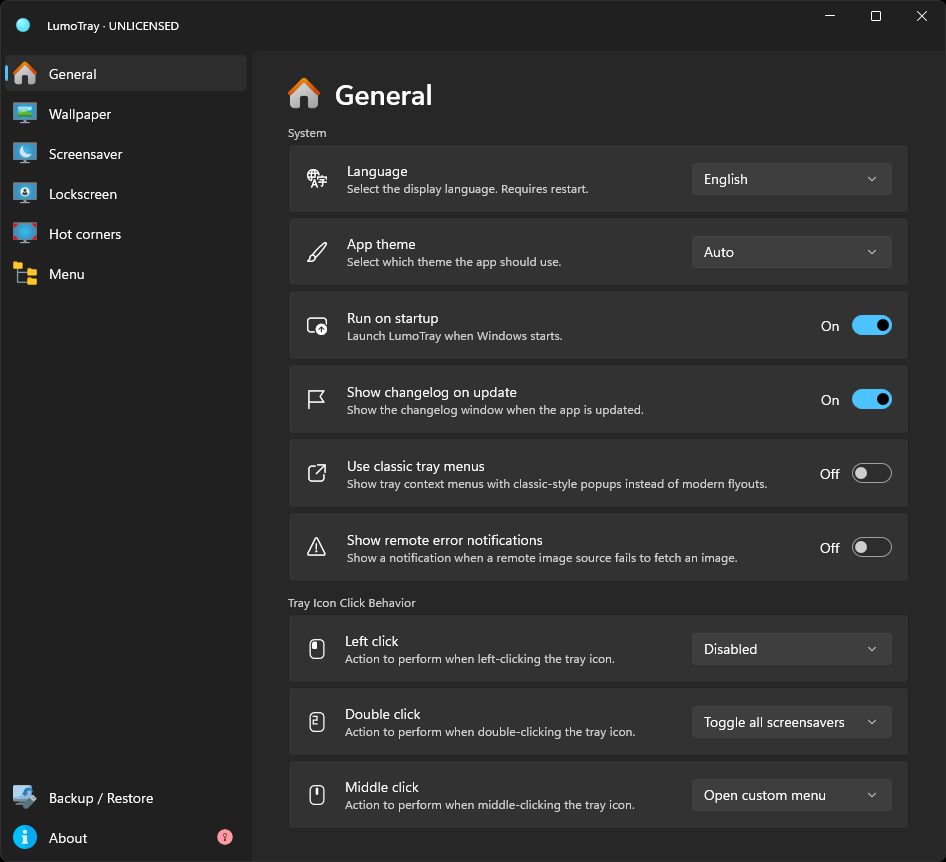
LumoTray is a Windows 11 desktop personalization tool that lives in the system tray. It covers the layer PowerToys does not touch:
Per-monitor wallpaper management. Static images, slideshows, live wallpapers (Matrix rain, Hexells, colour faders, videos, webpages), and online sources (Unsplash, Wallhaven, Bing, APOD, Windows Spotlight, NASA EPIC, museum artwork). Each monitor gets its own source, fit mode, and background colour – a feature Windows still does not offer natively in 2026. Our wallpaper guide covers the setup in detail.
Screensaver modes. LumoTray can turn your screens into clocks, Matrix rain displays, slideshows, or live artwork when the screensaver kicks in. You can run different screensavers on different monitors – something Windows 11 does not support out of the box. We confirmed this from Microsoft’s own Q&A back in April 2026: there is no per-monitor screensaver picker in Windows. Full guide here.
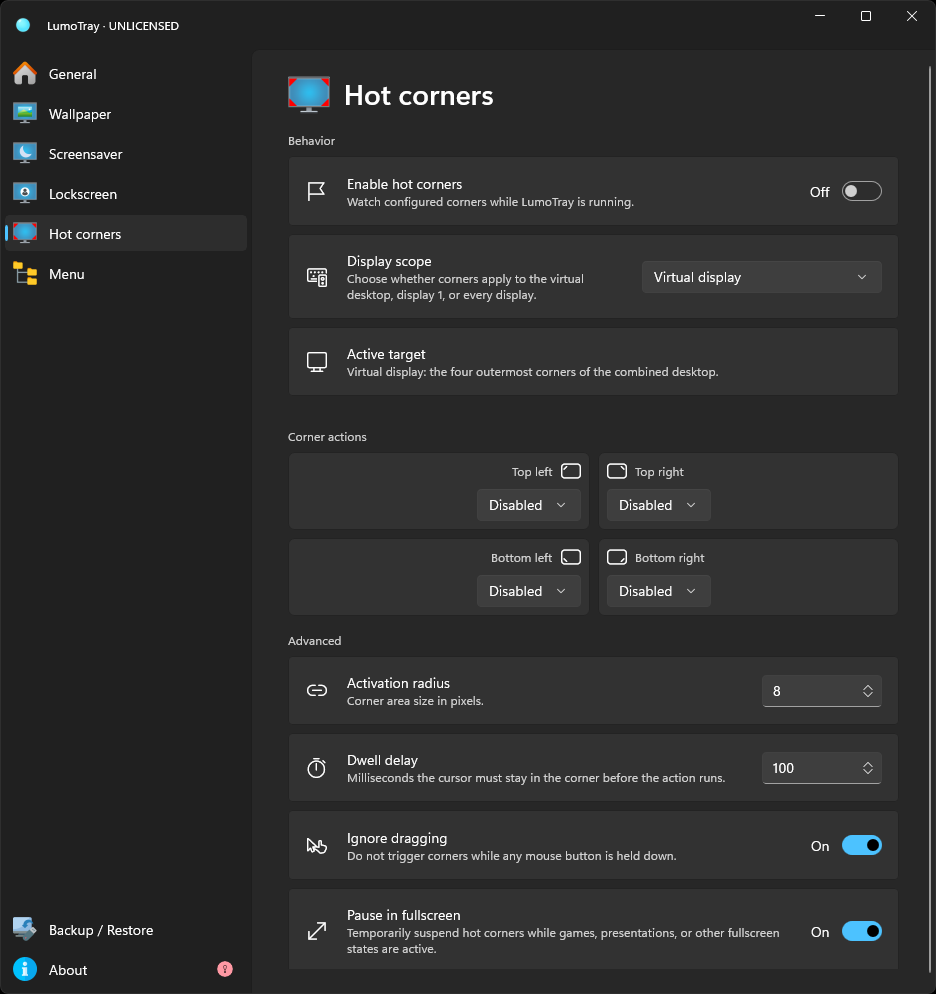
Hot corners. Move your mouse to any screen corner to trigger lock screen, screensaver start, display sleep, or custom commands. PowerToys does not offer hot corner functionality at all. Setup guide here.
Custom tray menus. Build your own right-click menu from the LumoTray system tray icon with app shortcuts, file links, scripts, and separators. Works like a mini-launcher that is always one click away. PowerToys has Command Palette and Dock for launching, but neither gives you a custom right-click menu from the tray. Setup guide here.
Lock screen customization. LumoTray lets you apply any wallpaper source to the Windows lock screen, including live and online sources that Windows does not natively support there.
Do they conflict?
No. They run alongside each other without issue. LumoTray does not hook into window management, keyboard shortcuts, or monitor hardware settings. PowerToys does not touch wallpaper, screensavers, or system tray menus. Nothing in either tool overrides the other.
I use both on a two-monitor Windows 11 setup. PowerToys handles FancyZones window snapping and Power Display brightness controls. LumoTray handles wallpaper rotation from Unsplash on one monitor, Matrix rain on the other, and a screensaver clock when the PC is idle. They do not step on each other.
Which one for what
You need PowerToys if:
- You want to adjust monitor brightness from software instead of physical buttons.
- You want custom window snap layouts across multiple monitors.
- You share one mouse and keyboard between two PCs.
- You want a keyboard shortcut cheat sheet that detects the active app.
You need LumoTray if:
- You want different wallpapers on each monitor, and especially live or online wallpapers.
- You want a screensaver that does something useful – clock, slideshow, visual display – and you want it per monitor.
- You want hot corners on Windows 11.
- You want a custom right-click tray menu for your most-used apps and scripts.
- You want to customize your lock screen beyond what Windows Settings offers.
You probably want both if:
- You run multiple monitors and care about both productivity (window layout, monitor control) and how your screens actually look (wallpaper, screensavers).
Bottom line
PowerToys covers the “how do I control my monitors and windows” side of multi-monitor life. LumoTray covers the “what is actually displayed on those monitors” side. They are built for different jobs, and Microsoft’s own product decisions – treating wallpaper and screensavers as a personalization layer they are not expanding – suggest they will stay that way.
If you already use PowerToys and your wallpapers, screensavers, and lock screen still look the way Windows left them, LumoTray is the missing half.