Windows 11 does not let you run a screensaver on only one monitor.
If you have two or three displays connected, the built-in screensaver spans all of them. There is no toggle anywhere in Settings, Control Panel, or the screensaver configuration dialog that says “only use this monitor.” Windows treats your entire desktop as one big canvas, and the screensaver fills it.
This is not a bug. It is how Windows screensavers have worked for decades. But it leaves a gap: what if you want a clock or a matrix-style visualization on your secondary display while you keep working on your primary one? What if you have an OLED panel on one side and want burn-in protection only there?
There are ways to get around it. Some are clunky. Some involve paid tools that do way more than you need. And one is built into LumoTray as a first-class feature.
This article runs through the options, including the official Microsoft answer and what PowerToys does (and does not) cover.
What Windows gives you
Open the Windows screensaver settings – right-click the desktop, pick Personalize, then Lock screen, then scroll to Screen saver settings – and you will see a dropdown of built-in options: 3D Text, Blank, Bubbles, Mystify, Photos, Ribbons.
Pick one, set a wait time, and it activates across every connected monitor. Microsoft confirmed this in an April 2026 support thread:
“Windows screen savers are designed to use the full desktop area and, by default, span across all connected monitors. The built-in configuration options in Windows 11… do not provide a way to restrict a screen saver to only one of multiple displays.”
That is from a Microsoft support engineer on Microsoft Q&A (thread 5846366). There is no hidden registry key. No Group Policy setting. No command-line switch for scrnsave.scr. Windows just does not expose per-monitor screensaver control.
This has been a source of steady, low-grade frustration on Reddit and Windows forums. Users ask about it on r/WindowsHelp and r/Windows11. They get the same answers: use a third-party tool, or use a workaround with power settings.
The workarounds (and why they are not great)
Turn off the other monitor. Go to Settings > Power & battery > Screen and sleep, and set the secondary display to turn off after a few minutes of inactivity. Then set your screensaver to kick in earlier on the primary. The secondary monitor goes dark while the primary runs the screensaver.
It sort of works. But you cannot choose what appears on the secondary display. You cannot show a clock or a slideshow or a visualization. It just goes black. And if you move the mouse, both monitors wake up.
Use Win+P to switch to single-display mode. Press Windows key + P, pick “Second screen only” when you want the screensaver on that monitor. Then switch back when you are done.
This is a manual toggle every time. It disconnects the primary display entirely – any open windows get shoved around, and your desktop layout resets. Not practical for regular use.
Edit the registry to change screensaver behavior. A few old forum threads suggest registry tweaks under HKEY_CURRENT_USER\Control Panel\Desktop. None of them reliably restrict a screensaver to a single monitor on Windows 11. Some break things entirely.
The third-party tool route
If you search for a solution, you will land on tools like DisplayFusion, Actual Multiple Monitors, and UltraMon.
DisplayFusion can control screensavers per monitor. It also does taskbars, wallpaper, window management, monitor profiles, and about forty other things. The Pro license starts at $34. It is a capable tool if you need the full multi-monitor toolkit. If all you want is a screensaver on your second monitor, it is a lot of software – and a lot of money – for one feature.
Actual Multiple Monitors (from Actual Tools) also supports per-monitor screensavers. It is aimed at enterprise multi-monitor setups and priced accordingly. UltraMon is even older and has not been meaningfully updated for Windows 11.
All of these tools work. None of them are focused on what you actually want: pick a screensaver, assign it to one monitor, done.
What PowerToys does not cover
Microsoft released PowerToys 0.99 in April 2026 with a new utility called Power Display. It puts monitor controls in the system tray – brightness, contrast, input source switching over DDC/CI. It is a genuinely useful addition for multi-monitor setups, and it validates the idea that Windows users want tray-based monitor tools.
Power Display does not include screensaver controls. It does not include wallpaper controls either. It is strictly about hardware-level monitor settings: brightness, color, input switching.
PowerToys is Microsoft’s official power-user toolkit. If they are not adding per-monitor screensaver features there, do not hold your breath for them to appear in Windows Settings.
How LumoTray handles per-monitor screensavers
LumoTray takes a different approach. Instead of bolting screensaver control onto a giant multi-monitor suite, it treats screensavers as one part of desktop personalization – alongside wallpapers, hot corners, lock screen images, and custom tray menus.
The screensaver feature works per monitor by design. You pick a mode for each connected display, set your timers, and LumoTray handles the rest.
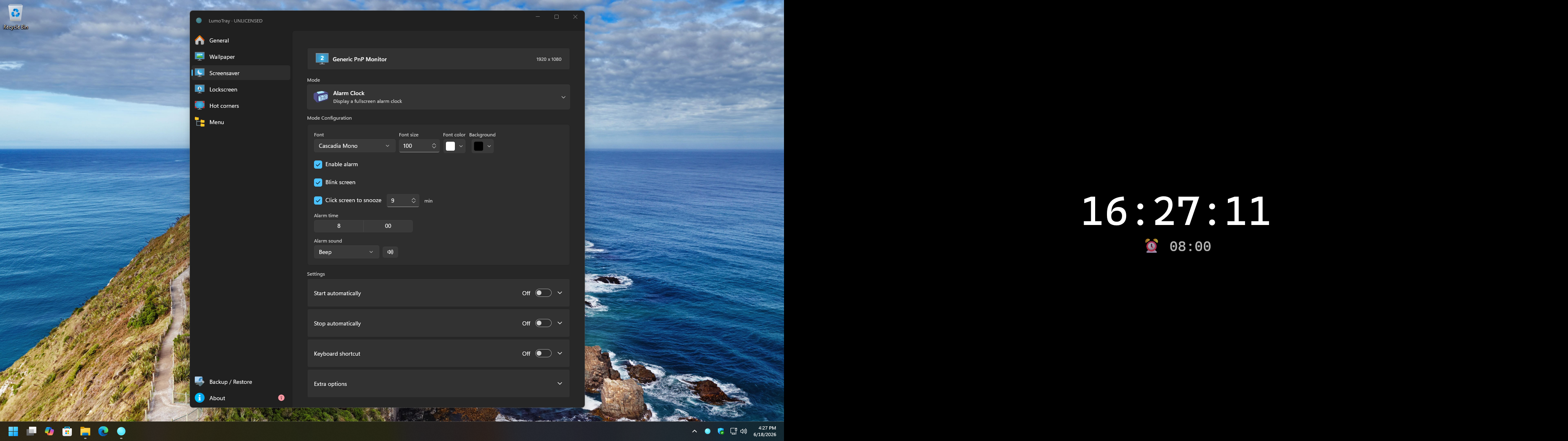
Here is how to set it up.
Step 1: Open LumoTray and go to the Screen Saver tab.
Right-click the LumoTray icon in the system tray and select Screen Saver, or open the main window and click the Screen Saver tab.
Step 2: Choose a screensaver mode for each monitor.
LumoTray lists your connected monitors at the top of the Screen Saver page. Select a monitor, then pick a mode from the dropdown:
- Matrix – green-on-black falling characters, like the classic code rain effect.
- Digital Clock – a full-screen clock in your choice of format (12h or 24h), with adjustable colors and font size.
- Slideshow – cycle through a folder of images on that monitor only.
- Blank – turns the selected monitor black while the other stays active.
Each monitor gets its own mode. You can run the Matrix on your left display and a digital clock on your right display simultaneously. Both run independently, with separate timers.
Step 3: Set the idle timeout.
LumoTray uses its own idle detection. Pick a delay in minutes – for example, 5 minutes on the secondary display. When the system has been idle for that long, LumoTray starts the screensaver you picked for that monitor.
If you want the primary monitor to stay active while the secondary runs a screensaver, set a longer idle delay (or disable screensaver entirely) on the primary.
Step 4: Assign a hotkey to start or stop screensavers manually.
In the Screen Saver settings, you can bind a keyboard shortcut to start screensavers immediately on all monitors, or to stop them and return to the desktop. This is useful if you want to trigger the screensaver on demand rather than waiting for the idle timer.
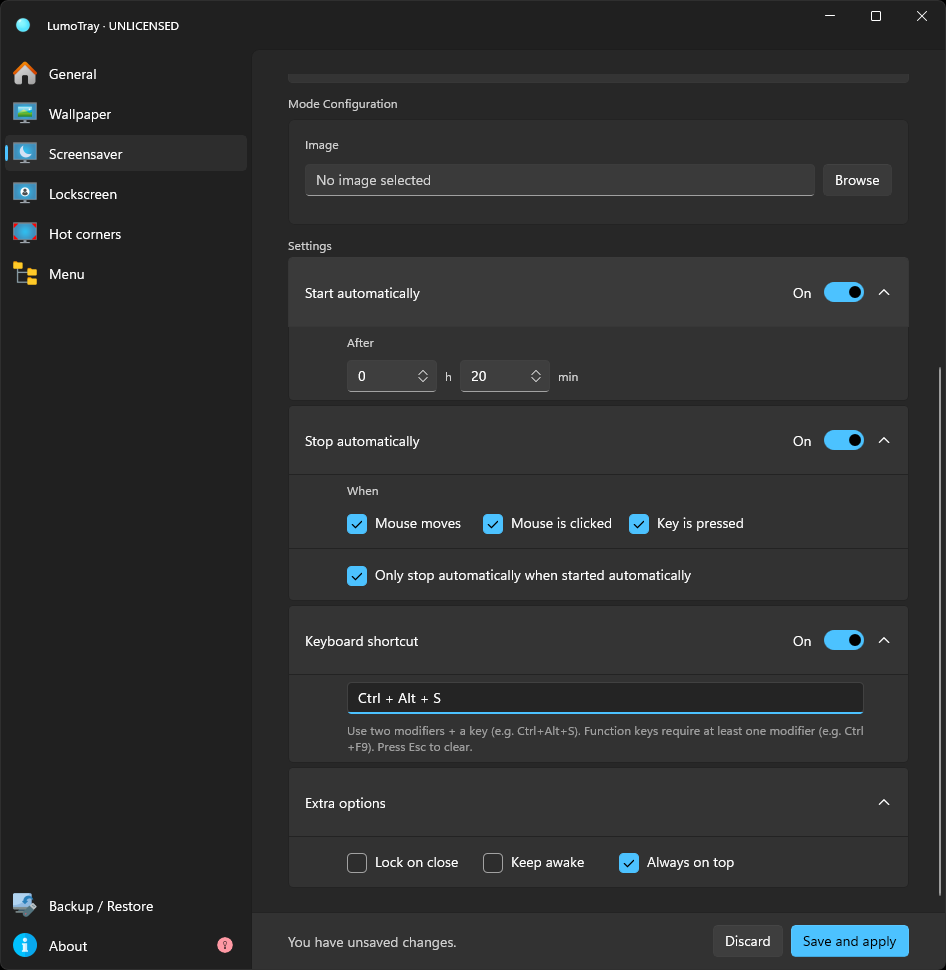
The hotkey approach is also handy for presentations or demos – one keypress toggles the screensaver on your secondary display without locking the workstation.
Step 5: Test it.
Let the system sit idle for the configured time, or hit your hotkey. LumoTray activates only the monitors that have a screensaver mode assigned and have reached their individual idle threshold. Move the mouse or press a key, and the screensaver dismisses.
When per-monitor screensavers make sense
Here are a few use cases where this setup shines, based on how people actually describe the problem on forums:
A spare monitor as a clock or dashboard. You keep working on your primary display. The secondary display turns into a large-format clock after 5 minutes of idle. It is subtle, practical, and does not get in the way.
OLED burn-in mitigation on one display. If you have one OLED and one LCD in your setup, you probably only need screensaver protection on the OLED. No reason to blank the LCD.
Ambient visualization while working. Run the Matrix or a slideshow on a secondary display as background ambiance. The primary monitor stays fully functional while the secondary shows something visually interesting.
Hot-desking with a shared secondary monitor. If a secondary monitor is visible to a room or shared space, you might want it to show a clock or slideshow when idle, even while the primary workstation is locked or off.
Caveats
A few things to know before you set this up:
Windows still has its own screensaver settings. If both Windows and LumoTray try to activate a screensaver at the same time, Windows wins. Set the Windows screensaver to “None” or to a longer delay than your LumoTray timeout.
Full-screen applications – games, video players, presentation software – suppress idle detection in most cases. If you are playing a game on the primary monitor, LumoTray will not start a screensaver on the secondary unless you use the manual hotkey.
If you rearrange your monitor layout in Windows Display Settings, LumoTray re-detects the monitors. Your per-monitor screensaver assignments should persist, but test after making display changes.
Bottom line
Windows 11 will not add per-monitor screensaver support any time soon. The official answer from Microsoft is to use a third-party tool. The default recommendation is DisplayFusion at $34 or more, which does the job but comes with a large feature set you may not need.
PowerToys 0.99 added monitor controls to the system tray – a clear signal that Microsoft sees value in tray-based multi-monitor tools – but it skips screensavers entirely.
LumoTray gives you per-monitor screensaver modes alongside multi-monitor wallpaper, hot corners, lock screen customization, and custom tray menus. If you already want better desktop personalization on Windows 11, the screensaver feature fits into a workflow you are already using.