Windows 11 does not let you build a custom shortcut menu in the system tray.
In older versions of Windows, you could pin Quick Launch toolbars or folder toolbars to the taskbar. Drop a bunch of shortcuts in a folder, point the toolbar at it, and you had fast access to apps, scripts, and files without cluttering the desktop or the Start menu.
Windows 11 removed taskbar toolbars. The Quick Launch folder technically still exists at %appdata%\Microsoft\Internet Explorer\Quick Launch, but there is no built-in way to surface it. You can pin individual apps to the taskbar, but that fills up fast. The system tray – that row of icons next to the clock – has no native shortcut menu either.
This article covers how to build a custom tray menu for apps, files, and scripts on Windows 11, walks through the third-party tools that fill this gap, and shows how LumoTray handles it as part of a broader desktop customization toolkit.
What a custom tray menu gives you
A custom tray menu is exactly what it sounds like: a right-click or left-click menu on a system tray icon that contains the shortcuts you put there. No Start menu scrolling. No desktop icon hunting. No taskbar pin limit.
Common uses:
- Launch a handful of work apps (IDE, terminal, browser profile, notes app).
- Open project folders directly.
- Run scripts – PowerShell, batch, Python – without a terminal window.
- Open frequently used documents or config files.
- Jump to system locations: Control Panel, Device Manager, network settings.
The tray icon is always visible (or one click away in the overflow area), so the menu is accessible from any application, any virtual desktop, any monitor.
What Windows gives you: nothing
Windows 11 has no menu builder. You can customize which icons appear in the tray overflow area – Settings > Personalization > Taskbar > Other system tray icons – but that is toggle-only. You cannot add custom shortcuts. You cannot add a folder. You cannot add a script.
Microsoft has not announced plans to bring back taskbar toolbars or add a custom tray menu feature. PowerToys, despite its growing list of utilities – FancyZones, Keyboard Manager, Mouse Utilities, Power Display – does not include a tray launcher.
The gap is real, and users keep asking about it. Reddit threads on r/Windows_Redesign, r/software, and r/WindowsHelp regularly surface the same question: how do I get quick-launch-style access back? The answer is always a third-party tool.
Third-party tray launchers at a glance
Several tools fill this gap. They range from minimal shortcut folders to full-featured menu builders.
TaskFolder (free, open-source, MIT license) is a .NET 8.0 tray launcher built specifically for Windows 11. It uses a shortcuts folder at %APPDATA%\TaskFolder\Shortcuts and auto-detects changes. It is tiny – under 200 KB, less than 5 MB of RAM – and handles PWAs by extracting the correct app icon instead of showing the browser’s. It was announced in February 2026 and updated to v1.1.0 in April 2026.
Trayy 3.1 (free, open-source) is a tray management tool that minimizes specified apps to the tray area. It was featured on Neowin and Softpedia in mid-2026. It handles custom tray icons and app organization, but it does not support UWP/Store apps and is more focused on minimizing running windows than on launching shortcuts.
SystemTrayMenu (free, open-source, GPL) is a Start Menu alternative that exposes a directory tree as a cascading tray menu. It is activated by clicking the tray icon or pressing Ctrl+Win. It is well-reviewed on SourceForge, with users specifically calling out how it takes “some of the pain of Windows 11 away.”
naxl/tray (free, open-source) is a minimal GitHub project described as a “standalone system tray launcher.” It is small and straightforward, with fewer features than TaskFolder or SystemTrayMenu.
Tray Launcher on the Microsoft Store is a paid option ($4.99 as of mid-2026) that adds apps, files, folders, and system links to a tray menu. It is the most polished commercial tray-only tool, but it does one thing.
FlashTray Pro 5 (freeware) is an older tool that adds a customizable tray menu alongside extra utilities – a screen magnifier, a highlighter, and a character map. It works on most Windows versions and was covered in a MakeUseOf guide in January 2022.
The pattern across all of these tools is the same: they solve one problem. If you need a tray launcher and nothing else, any of them will work. But if you also want multi-monitor wallpapers, screensaver modes, lock screen images, or hot corners, you end up installing separate tools for each.
How LumoTray handles custom tray menus
LumoTray is a Windows 11 desktop customization tool that bundles five features into a single tray app: wallpaper management, screensaver modes, lock screen images, hot corners, and a custom menu builder.
The custom menu is one of its core features. It is not a separate utility. It lives in the same tray icon that controls your wallpapers and screensavers, so you are not adding another process to your startup list.
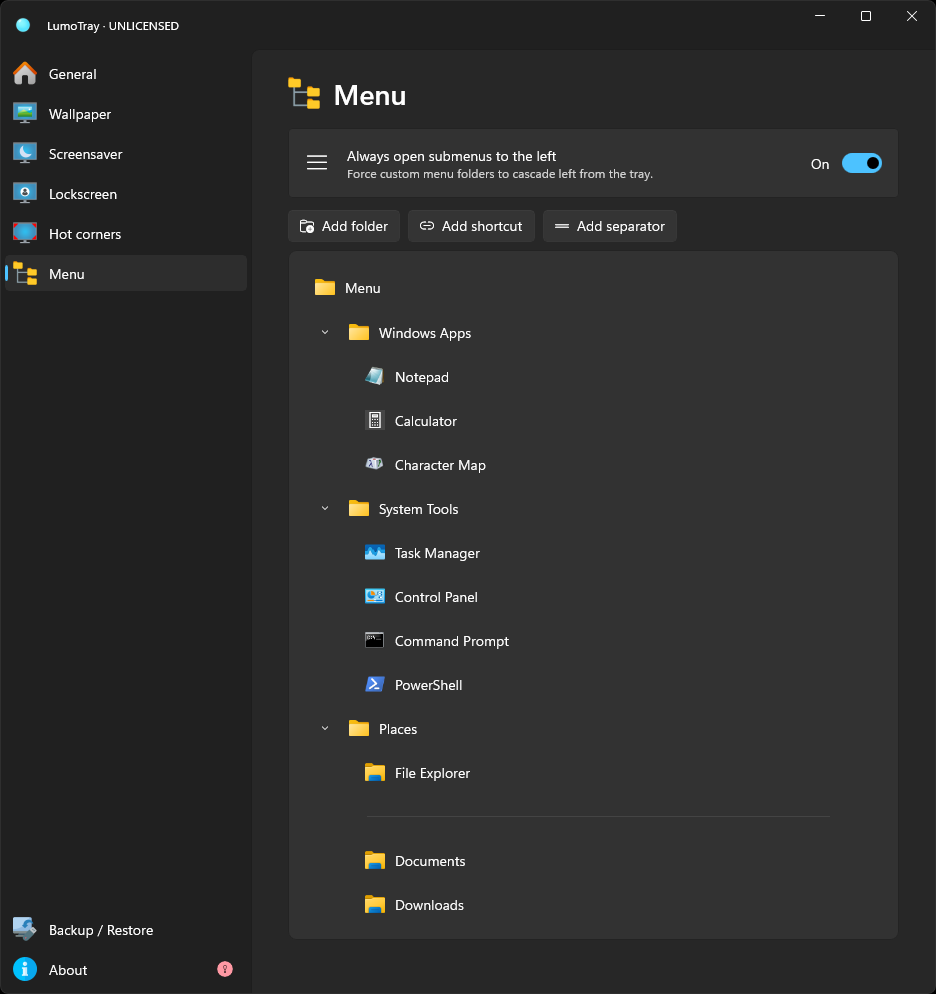
Setting up a custom tray menu in LumoTray
- Open LumoTray from the system tray (click or double-click the tray icon).
- Go to the Menu page.
- You will see your current menu structure. Click Add to start building.
- Pick the type of item you want to add:
- Application – browse to any
.exefile. - File – any document, spreadsheet, image, or other file.
- Folder – opens File Explorer at a specific path.
- Script –
.bat,.ps1,.py, or any executable script. - Separator – a visual divider to group related items.
- Submenu – nests items inside a flyout folder.
- Application – browse to any
- Give the item a name. If you want a custom icon, LumoTray lets you pick one from the executable or an image file.
- Repeat for every item you want in the menu.
To test it, right-click the LumoTray tray icon. Your custom menu appears at the top of the context menu, above the built-in LumoTray options.
Modern vs classic menu styles
LumoTray v2 added two menu styles:
- Modern – a flat, clean look that matches Windows 11’s visual language. Rounded corners, consistent spacing, dark and light theme support.
- Classic – a more traditional Windows menu style with tighter spacing and standard context-menu behavior.
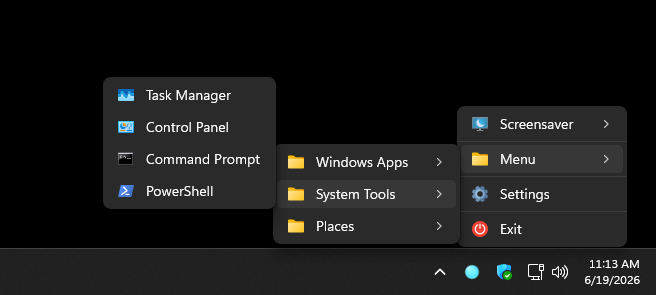
You pick the style on the Menu configuration page. Both styles support the same items – the difference is purely visual.
What you can put in a LumoTray menu
- Applications: Any installed program or portable
.exe. VS Code, Terminal, Obsidian, a specific browser profile – whatever you launch multiple times a day. - Files: Documents you return to often. A reference PDF, a spreadsheet tracker, a config file.
- Folders: Jump straight to a project directory, a downloads folder, or a network share.
- Scripts: PowerShell, batch, Python. LumoTray runs them as if you double-clicked in Explorer, so
.batfiles open a visible terminal by default and.ps1scripts run with your current execution policy. - Separators: Group related items visually. Put a separator between work tools and personal shortcuts, or between apps and scripts.
- Nested folders: Submenus inside submenus. You can organize shortcuts into categories – “Dev Tools,” “Documents,” “System” – and browse them as cascading flyout menus.
There is no practical limit on the number of items or nesting depth. LumoTray handles large menus the same way it handles small ones.
Reordering, renaming, and removing
Every item in the menu list can be dragged to a new position. Right-click an item to rename it, change the icon, or remove it. Menu changes take effect immediately – no restart, no “apply” button, no config file to edit.
Why the all-in-one approach matters
A dedicated tray launcher is fine if that is all you need. But the tray is a limited resource. Every tool that adds a tray icon is one more icon in your overflow area, one more process in Task Manager, and one more thing to configure.
LumoTray replaces several tools at once. If you use it for multi-monitor wallpapers, you already have a tray icon. If you use it for screensaver modes, same icon. If you use it for hot corners, same icon. Adding a custom menu to that same tray entry is a zero-footprint addition.
There are also practical combos that do not work with separate tools:
- Hot corner to show desktop + custom menu of frequent apps. Flick to a corner to minimize everything, then right-click the tray for your app launcher. Two actions that share zero screen space.
- Per-monitor wallpaper slideshow + menu of wallpaper presets. Switch between wallpaper configs from the tray without opening the full LumoTray window.
- Screensaver mode on a spare monitor + menu of scripts. Fire a script from the tray that changes which screensaver is running on which monitor.
No other tray launcher on this list also manages wallpapers, screensavers, and lock screens. That combination is what makes LumoTray different – not that it has a custom menu, but that the menu shares an icon with four other features you might already be using.
A few caveats
The LumoTray custom menu is attached to the LumoTray tray icon. It is not a separate, standalone menu that you can pin independently. If you are looking for a dedicated launcher icon that does nothing else, a tool like TaskFolder or SystemTrayMenu is a better fit.
On Windows 11, the system tray overflow behavior can hide icons behind the caret (the ^ button). If you set LumoTray to auto-start and want the tray icon always visible, drag it out of the overflow area in taskbar settings.
If your menu includes scripts that need admin privileges, you will need to run LumoTray as administrator – or configure the individual script shortcuts to use runas. LumoTray does not auto-elevate script execution.
Bottom line
Windows 11 removed taskbar toolbars and never added a custom tray menu. The gap is filled by a handful of third-party tools, from minimal open-source launchers to Store apps.
LumoTray’s approach is different: a custom tray menu that lives alongside wallpaper management, screensaver modes, lock screen images, and hot corners – all from one tray icon, one installer, one $19 license. If you want a tray launcher and nothing else, pick a dedicated tool. If you want a tray launcher that shares an icon with the rest of your desktop customization setup, LumoTray does that.
Download LumoTray and head to the Menu page to build your menu.
Competitors mentioned: TaskFolder, Trayy 3.1, SystemTrayMenu, naxl/tray, Microsoft Store Tray Launcher, FlashTray Pro 5. All are tray-launcher-only tools. LumoTray is the only one that adds wallpaper, screensaver, lock screen, and hot corner management to the same tray icon.