When you search for free multi-monitor software for Windows, two names come up a lot: Dual Monitor Tools and LumoTray. They are both free, both handle multiple monitors, and both deal with wallpapers. But they are built for different kinds of users, and picking the wrong one means you end up with a tool that does not cover what you actually need.
This article compares them feature by feature, with notes on where each one falls short, so you can decide without installing both and figuring it out through trial and error.
What Dual Monitor Tools is
Dual Monitor Tools (DMT) is a free, open-source collection of utilities for Windows users with two or more monitors. It is distributed under GPLv3 and has been around for well over a decade – the SourceForge project dates back to 2007. The latest stable version is 2.12, released in August 2025.
DMT is not a single application. It is a modular toolkit. You pick which pieces you want to use. The main modules are:
- Cursor: lock the mouse to one screen, restrict movement between monitors, or make the cursor sticky at screen edges.
- Wallpaper Changer: change wallpapers automatically from local folders, web URLs, or Flickr. Can generate a single spanned image across monitors or assign different images per screen.
- Dual Wallpaper: a simpler standalone tool for setting one image per monitor.
- DMT Screen Saver: displays the wallpaper generated by the Wallpaper Changer module as a screen saver.
- Launcher: start applications with a hotkey, optionally positioning them on a specific monitor.
- Snap: capture screen regions and display them in a floating window.
- Swap Screen: swap the contents of two monitors.
The cursor module is what most DMT users care about. Being able to lock the mouse to one monitor during gaming, or restrict cursor movement so you do not accidentally drift to the wrong screen, is a feature Windows still does not offer natively. DMT’s SourceForge reviews are full of people who use it specifically for cursor locking. One reviewer from 2023 put it plainly: “Being able to lock the mouse to my main monitor at work without unplugging the HDMI cords for the other two is an absolute godsend.”
DMT also has strong hotkey support for window management – move windows between monitors, snap windows to screen edges, minimise and restore with keyboard shortcuts.
What LumoTray is
LumoTray is a desktop personalization tool for Windows 11 and Windows 10. It lives in the system tray and covers wallpaper, screen savers, hot corners, lock screen images, and custom tray menus. It is distributed through the Microsoft Store and is built on a current .NET runtime, targeting modern Windows APIs.
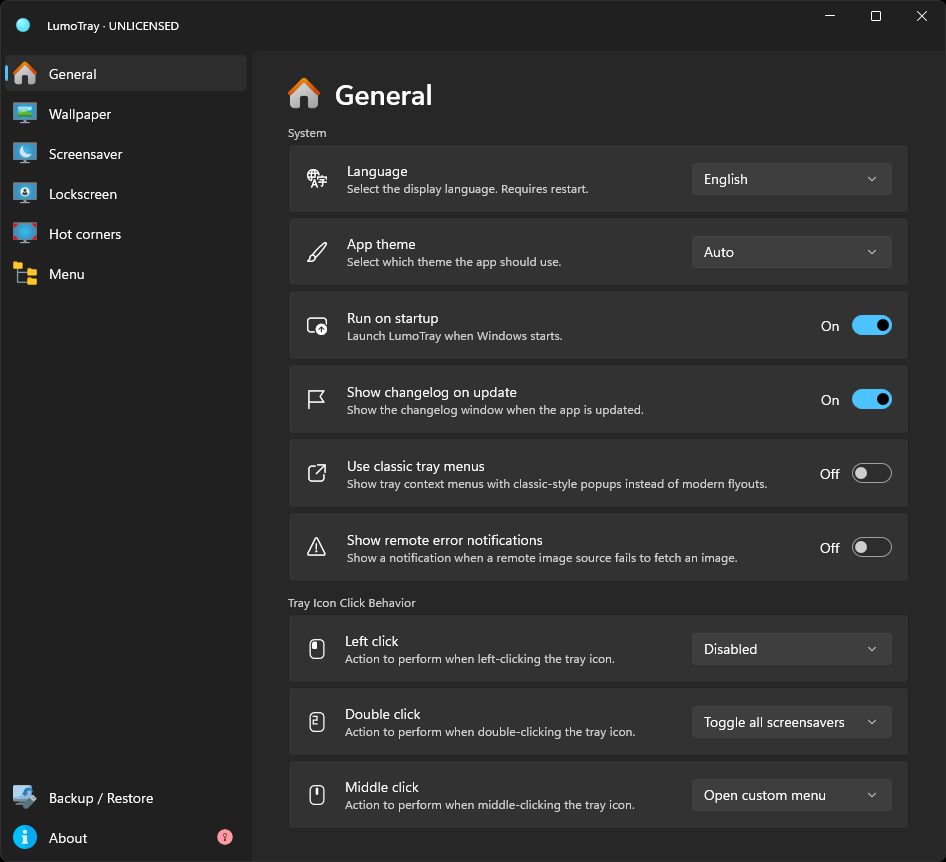
Where DMT is a utility toolkit, LumoTray is a personalization layer. It does not manage windows, it does not lock cursors, and it does not swap screens. What it does is make your desktop look and behave more like you want it to.
Here is what each feature area covers:
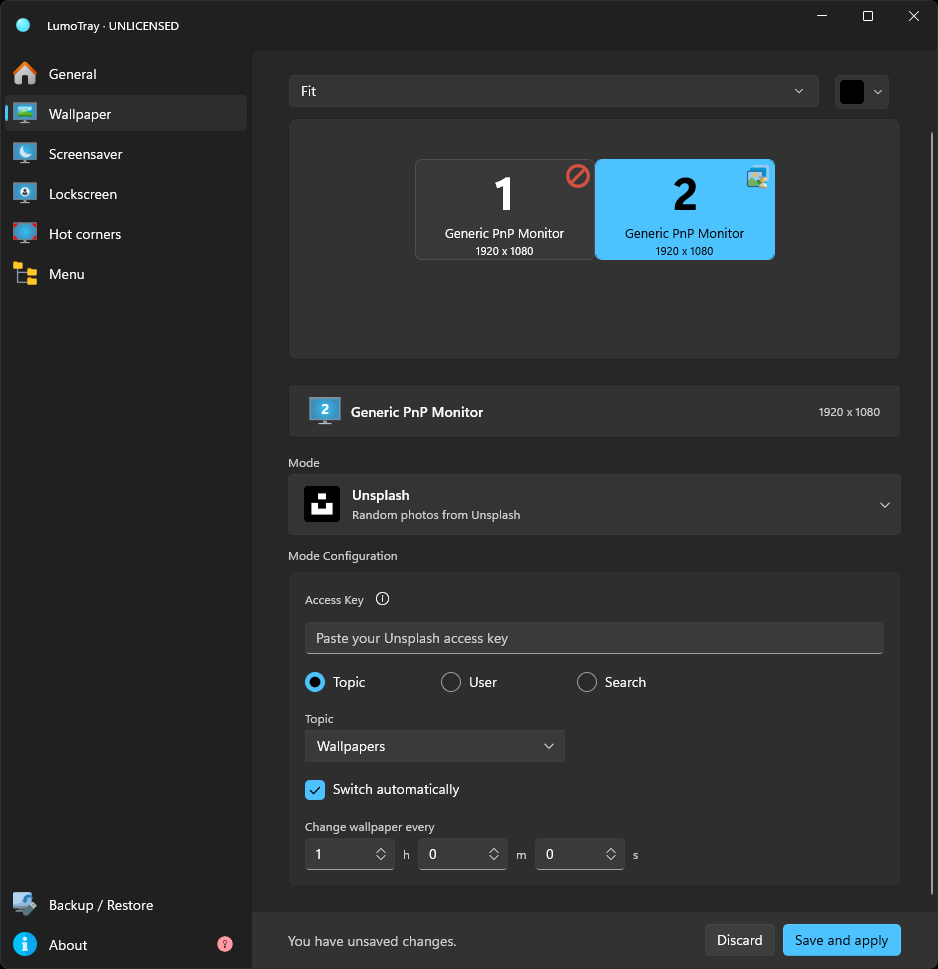
Wallpapers. Per-monitor wallpapers from local images, Unsplash, Wallhaven, Bing daily, APOD (NASA astronomy photos), Windows Spotlight, solid colours, and live modes – Matrix rain, Hexells geometric patterns, colour gradients, video files, video playlists, webpages, PDFs, and slideshows. Each monitor gets its own source, fit mode, and background colour independently.
Screen savers. Clock, Matrix, and slideshow screen saver modes. You can run a screen saver on all monitors, or on one monitor while the others stay active – useful for turning a spare monitor into a clock or art display.
Hot corners. Push the mouse into any screen corner to trigger an action: lock the PC, show the desktop, open Task View, start a screen saver, launch an app, or run a command. macOS has had this for years. Windows 11 does not. LumoTray adds it without any scripting.
Custom tray menus. Build a launch menu that pops up from the system tray icon. Add apps, files, folders, scripts, and separators. It is a quick-launch workflow that keeps your taskbar and desktop uncluttered.
Lock screen. Set a custom lock screen image or use a Windows Spotlight image as your lock screen background through LumoTray.
LumoTray’s free version includes every feature with no restrictions.
Where they overlap
The overlap is smaller than it looks. Both handle multi-monitor wallpapers. That is about it.
Wallpaper management
DMT’s wallpaper tools take two approaches. The Wallpaper Changer module generates a single large bitmap that spans your entire desktop, cutting it into per-monitor slices behind the scenes. Dual Wallpaper lets you assign one image per monitor from local files. Both support automatic rotation on a schedule. Sources are limited to local folders, web URLs, and Flickr.
LumoTray manages each monitor’s wallpaper independently with its own source, scaling, and background colour. The source list is broader – beyond local images, you get Unsplash, Wallhaven, Bing daily, APOD, and Spotlight. Live wallpaper modes like Matrix and Hexells have no equivalent in DMT.
Where DMT’s approach shows its age is in Windows 11 compatibility. The Wallpaper Changer module generates wallpapers by creating a composite bitmap and applying it through Windows APIs that have changed across Windows versions. On the DMT SourceForge help forum, users report that Wallpaper Changer stopped working after Windows 11 24H2. One user on r/Windows11 described it in February 2025:
“Ever since 24H2, Dual Wallpaper doesn’t work anymore and Win 11 personalization settings are laggy and they switch to solid colour whenever I try to change wallpapers. I have 3 monitors. Before this it worked. Now it stutters Windows settings personalization, almost unbearable lag, I had to restart the PC.”
The DMT maintainer has acknowledged these issues and suggested toggling the “smooth fade” setting as a workaround, since that switches which Windows API the tool uses. But the problem is structural – DMT is built on older wallpaper APIs, and Microsoft keeps changing how wallpaper rendering works in Windows 11. LumoTray targets the current Windows 11 wallpaper stack directly, so it does not have this class of problem.
Screen savers
DMT’s screen saver module does one thing: it displays the wallpaper generated by the Wallpaper Changer as a screen saver. That is it. If you want a clock, Matrix animation, or photo slideshow as a screen saver, you need separate .scr files from somewhere else.
LumoTray includes three screen saver modes: a digital clock, Matrix-style falling characters, and a photo slideshow from a local folder. These are built in, not bolted on. And you can run a screen saver on one monitor while using the other monitors normally, which is useful for a spare monitor that sits idle most of the day.
Where they do not overlap at all
Cursor and window management (DMT only)
This is DMT’s strongest suit and the reason most people install it. Cursor locking, cursor restriction between monitors, sticky screen edges, and hotkey-driven window management are what DMT does best. PowerToys FancyZones covers window snapping, and PowerToys Mouse Utilities adds some cursor features, but DMT’s cursor lock for fullscreen gaming has no good free equivalent.
LumoTray does not manage cursors or windows at all. It is not trying to. If cursor locking or window-moving hotkeys are what you need, DMT is the right tool and LumoTray is irrelevant.
Hot corners (LumoTray only)
LumoTray has a hot corners page with four corners and a dropdown per corner. Pick an action – lock, show desktop, Task View, screen saver, launch app, run command – and it works.
DMT has no hot corners feature. You could approximate some of it with hotkeys in the Launcher module, but that requires keyboard shortcuts, not mouse-only corner gestures. If you want macOS-style hot corners on Windows 11, LumoTray has it built in.
Custom tray menus (LumoTray only)
LumoTray’s custom tray menu builder lets you create a launch menu from the system tray. Add apps, files, folders, scripts, and separators. Switch between a compact classic style and a larger modern style with icons.
DMT’s Launcher module runs apps via hotkeys, but it does not build visual menus. There is no tray-based launcher in DMT.
Lock screen (LumoTray only)
LumoTray can set a custom lock screen image or pull a Windows Spotlight image for the lock screen. DMT has no lock screen features – it does not interact with the lock screen at all.
Setup and daily use
DMT installs as a classic Windows desktop application – MSI installer or portable ZIP from SourceForge. It has no Microsoft Store listing, no auto-update mechanism, and the installer is not code-signed. The UI is functional Windows Forms with tabs and checkboxes. It looks like a settings panel from 2010. For some users that is a plus – it is straightforward, no frills, nothing unexpected. For others it feels dated.
LumoTray installs from the Microsoft Store. It auto-updates through the Store. The UI is built for Windows 11 with the current Windows design language. It minimises to the system tray after setup and stays out of the way.
Resource usage is low for both. DMT’s modules run as separate lightweight processes. LumoTray runs a single tray process. Neither will make a dent in system resources.
Compatibility
DMT supports Windows XP through Windows 11 on paper. In practice, the wallpaper modules have known issues on Windows 11 24H2 and later builds. The cursor and window management modules appear to work fine on current Windows 11. The project’s development has been in maintenance mode – v2.12 focused on “maintenance, security patches, and hardware compatibility.”
LumoTray targets Windows 10 and Windows 11 specifically. It is a younger project with active development. The codebase is on current .NET and does not carry legacy Windows compatibility weight.
Which one fits your setup
Pick Dual Monitor Tools if:
- You need cursor locking for fullscreen gaming or focused work on one monitor.
- You want hotkey-driven window management (move windows between monitors, snap, minimise).
- You need to swap screen contents between monitors.
- You prioritise open-source licensing (GPLv3).
- You do not need wallpaper features on Windows 11 24H2 or newer – or you are willing to work around the 24H2 wallpaper issues.
Pick LumoTray if:
- You want wallpaper variety beyond local images: Unsplash, APOD, Bing, live wallpapers.
- You want screen saver modes (clock, Matrix, slideshow) without hunting for .scr files.
- You want hot corners that work on Windows 11.
- You want a custom tray launcher menu for apps and scripts.
- You want a lock screen image manager.
- You want reliable wallpaper rendering on current Windows 11 builds.
- You prefer Microsoft Store installation with automatic updates.
Use both if:
- You want DMT for cursor locking and window hotkeys, plus LumoTray for wallpapers, screen savers, hot corners, and tray menus.
- They do not conflict. DMT’s wallpaper modules can be left disabled while LumoTray handles all personalization. They run independently and serve different purposes.
The bottom line
Dual Monitor Tools is a utility belt. It gives you practical tools for multi-monitor productivity: lock the cursor, move windows with hotkeys, swap screens. The wallpaper features are a bonus, but they are showing their age on Windows 11.
LumoTray is a personalization suite. It gives you wallpaper sources that go beyond a folder of JPGs, screen saver modes you might actually want to look at, hot corners that Windows 11 still lacks, and a tray menu you can build yourself.
They are not really competitors. They are complementary tools for different parts of the multi-monitor experience. The question is not which one is better. The question is which gaps in your current setup you are trying to fill.
If the answer is personalization – wallpapers, screen savers, hot corners, tray menus – LumoTray is the tool for that job. If the answer is utility – cursor control, window hotkeys, screen swapping – Dual Monitor Tools does that well.
Download LumoTray from the Microsoft Store or the LumoTray website.