If you use more than one monitor on Windows, you have probably noticed that the built-in wallpaper and display tools do not keep up. The default Windows wallpaper manager gives you one image across all screens, or a stretched mess on mismatched monitor sizes. There is no per-monitor control, no hot corners, no screen saver modes, and no custom tray menus.
DisplayFusion and LumoTray both try to fill that gap, but they come at it from different directions. DisplayFusion is a veteran multi-monitor utility that has been around since the Windows Vista days. LumoTray is a newer Windows 11 desktop customization tool that focuses on wallpaper, screen savers, hot corners, lock screen images, and custom tray menus.
This article compares them head to head so you can decide which one fits your setup – and your budget.
What DisplayFusion does
DisplayFusion, made by Binary Fortress Software, is a multi-monitor management suite. It packs a lot into one application: multi-monitor taskbars, wallpaper management, monitor configuration profiles, monitor splitting (virtual monitors), window management functions, triggers, titlebar buttons, and scripted automation with C# or VB.net.
The feature list is long. On the free vs Pro comparison page, you will see checkmarks across dozens of rows. The free version handles basic wallpaper multi-monitor setup. Pro adds custom per-monitor image scaling, blur, rotation, greyscale, colour adjustments, monitor splitting, triggers, and scripted functions.
DisplayFusion also replaces the Windows taskbar on secondary monitors. If you want a taskbar with a clock, system tray, and pinned apps on every monitor, DisplayFusion gives you that. Windows 11’s native secondary taskbar is functional but limited – no clock, no tray icons, no customisation. DisplayFusion’s multi-monitor taskbars are a core reason people buy it.
The trade-off is complexity. DisplayFusion installs a lot of hooks into Windows – taskbar replacement, window management, titlebar button injection, trigger monitoring. It is powerful, and it also has a history of Windows 11 compatibility friction.
What LumoTray does
LumoTray is a desktop personalization tool for Windows 11. It lives in the system tray and covers a different set of features than DisplayFusion:
Wallpaper management. Per-monitor wallpapers from local images, online sources (Unsplash, Wallhaven, Bing, APOD, Windows Spotlight), and live modes (Matrix, Hexells, colour fader, video, webpages, slideshows, PDF). As of v2.1.0, each monitor gets its own fit mode and background colour independently.
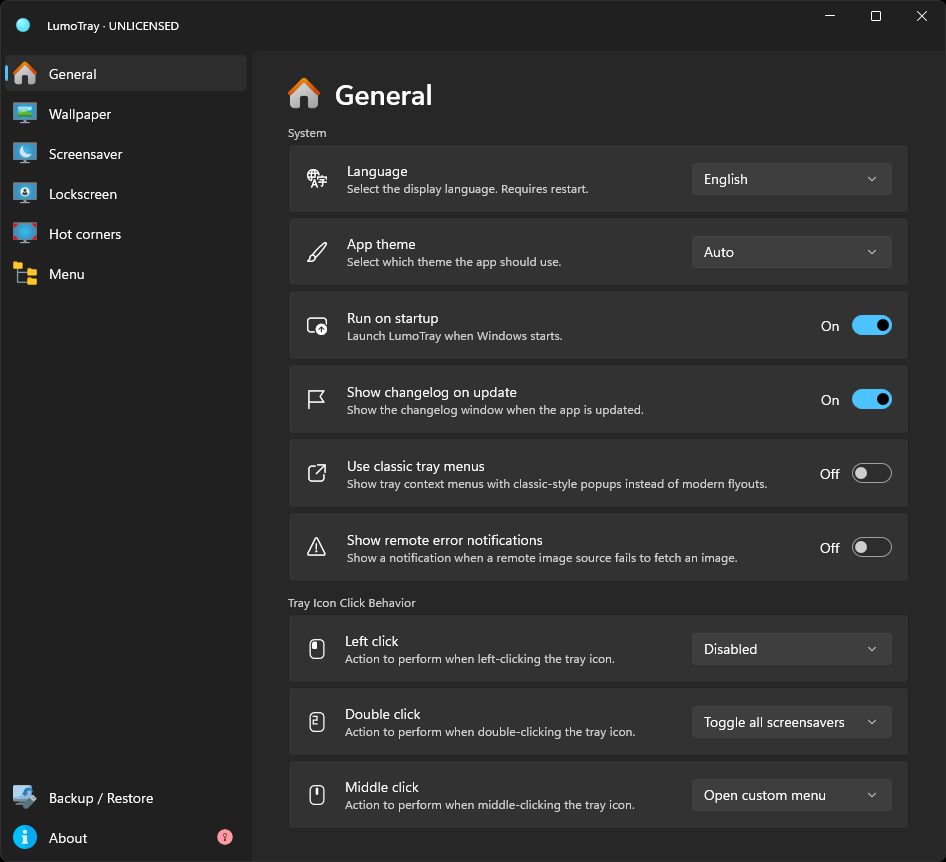
Screen saver modes. Clock, Matrix, and slideshow screen savers that you can run on all monitors, or on one monitor while the others stay usable. The “screen saver on a spare monitor” workflow is something DisplayFusion does not offer in the same way.
Hot corners. Push the mouse into a screen corner to lock the PC, show the desktop, open Task View, start a screen saver, launch an app, or run a command. macOS has shipped this for years. Windows 11 has not. LumoTray adds it.
Custom tray menus. Build a custom menu that pops up from the tray icon. Add apps, files, folders, scripts, and separators. Useful for quick-launch workflows without cluttering the taskbar or desktop.
Lock screen customisation. Set a custom lock screen image or use a Windows Spotlight image as your lock screen background through LumoTray.
LumoTray is free to download with no feature restrictions. A $19 lifetime license removes the weekly registration reminder and adds your name to the about section. It is a solo developer project, distributed through the Microsoft Store.
Head to head: where they overlap
There is surprisingly little direct overlap between the two tools. They both handle multi-monitor wallpaper, but beyond that they solve different problems.
Wallpaper management
Both tools let you set different images per monitor. Both support local images and online sources.
DisplayFusion Pro adds fine-tuning that LumoTray does not: per-monitor image blur, rotation, greyscale, sepia, invert, and custom image info overlays. If you need to blur your secondary monitor’s wallpaper or run a greyscale image on one screen, DisplayFusion Pro can do that.
LumoTray’s wallpaper strengths are in source variety and live modes. It pulls from Unsplash, Wallhaven, Bing daily, APOD (NASA astronomy photos), and Windows Spotlight. It can display live wallpapers like Matrix rain, Hexells patterns, colour gradients, webpages, and video playlists as wallpapers. DisplayFusion can load from online sources, but the built-in selection is narrower and there are no live modes.
For most people setting up multi-monitor wallpapers, either tool works. If you want a Matrix wallpaper on one monitor and a solid colour on another, LumoTray does it out of the box. If you need per-monitor blur and rotation on static images, DisplayFusion Pro has you covered.
Taskbars
This is where DisplayFusion has a clear lead – if you need multi-monitor taskbars.
LumoTray does not manage taskbars at all. It is not trying to. If you want a fully functional taskbar with a clock and system tray on every monitor, DisplayFusion is the tool for that job. Windows 11’s native secondary taskbar shows pinned and running apps, but that is it. DisplayFusion fills the gap.
The catch: DisplayFusion’s taskbar integration has had bugs on Windows 11. The company’s own support forum documents reports of windows hiding behind taskbars, explorer.exe crashes tied to ucrtbase.dll, and taskbar rendering issues after Windows updates. Binary Fortress has addressed some of these over time, but the forum thread shows it has been a recurring headache for users across multiple Windows 11 builds.
Window management
DisplayFusion has 30-plus window management functions, plus scriptable automation with C# and VB.net. You can move windows between monitors, snap them to zones, lock the cursor to a monitor, adjust window transparency, roll up windows to titlebars, and trigger actions when windows are created or focused.
LumoTray does none of this. If window management is a core need, DisplayFusion is the right tool. That said, PowerToys FancyZones covers a good chunk of window snapping and zoning for free, so check whether PowerToys already does what you need before paying for DisplayFusion Pro.
Screen savers
LumoTray includes screen saver modes. DisplayFusion lets you start or disable the system screen saver, but it does not provide its own screen saver content.
If you want a Matrix-style screen saver on a second monitor, a digital clock screen saver, or a rotating photo slideshow, LumoTray has that built in. DisplayFusion can trigger Windows screen savers, but you are relying on whatever .scr files you have on the system.
Hot corners
LumoTray has hot corners. DisplayFusion does not have a dedicated hot corners feature – you could approximate some corner-triggered actions with its triggers system and scripted functions, but it would require setup and scripting. LumoTray gives you a simple page with four corners and a dropdown per corner.
Custom tray menus
LumoTray has a custom tray menu builder with support for separators, apps, files, folders, and scripts. DisplayFusion does not have a comparable feature. Its tray icon gives you access to DisplayFusion functions, but you cannot build an arbitrary launcher menu from it.
Pricing
| Tool | Free tier | Paid options |
|---|---|---|
| DisplayFusion | Basic wallpaper and monitor functions | Pro Standard: $34/machine, Pro Personal: $49/household, Pro Steam: $39.99, Pro Site: $899, Pro Enterprise: $3,899 |
| LumoTray | Full features, no restrictions | $19 lifetime license (removes registration reminder) |
DisplayFusion’s pricing scales from consumer to enterprise. $34 for a single machine, $49 for a household, and into the thousands for site and enterprise deployments. All licenses are lifetime – you pay once and get all future versions. The Steam version often goes on sale, sometimes as low as $9 according to Reddit users on r/software.
LumoTray costs $19 for a lifetime license. The free version is fully functional with no missing features – the license removes a weekly registration popup and adds your name to the about section. It is a single price, no tiers.
Windows 11 compatibility
LumoTray was built for Windows 11 and Windows 10. It targets current Windows APIs and a modern .NET runtime. There is no legacy code from older Windows versions to maintain.
DisplayFusion has been around since the Windows Vista era. The codebase has evolved through Windows 7, 8, 10, and now 11. Version 10.0 added full Windows 11 support, but the company’s forums show ongoing edge cases – taskbar rendering glitches, window maximise quirks, and explorer.exe crashes. Many users report that it works fine most of the time, but the threads are worth reading before you buy.
A Neowin article noted that DisplayFusion 10.0 “gains full Windows 11 support, but loses it on Windows 7 and Windows 8/8.1,” confirming the trade-off Binary Fortress made to modernise. If you are on Windows 11 and want a tool that was built for it from the start, LumoTray has the edge in platform focus.
Which one for which setup
Pick DisplayFusion if:
- You need multi-monitor taskbars with clocks and system trays on every screen.
- You use window management functions daily (move to next monitor, snap, transparency, always on top).
- You want deep wallpaper fine-tuning: per-monitor blur, rotation, greyscale, custom info overlays.
- You are comfortable scripting in C# or VB.net for custom window automation.
- You need monitor splitting for ultrawide or Eyefinity/Surround setups.
Pick LumoTray if:
- You want a lightweight tray app that handles wallpaper, screen savers, hot corners, lock screen, and custom menus in one place.
- You use diverse wallpaper sources (Unsplash, APOD, Bing, Matrix, Hexells, video, webpages).
- You want screen saver modes without hunting for .scr files.
- You want hot corners that work without scripting.
- You want a custom tray launcher menu for apps and scripts.
- You prefer free or a single $19 one-time payment.
Use both if:
- You need DisplayFusion’s taskbars and window management, but want LumoTray’s wallpaper sources, screen saver modes, hot corners, and custom tray menus.
- They do not conflict. LumoTray only manages wallpapers when its wallpaper page is active, so DisplayFusion can handle wallpapers and LumoTray can handle everything else if you set it up that way. Or vice versa.
A note on what is not here
This comparison covers the current state of both tools as of late June 2026. Both are actively developed, so features will shift. DisplayFusion has a longer track record and a larger feature surface. LumoTray is younger and ships updates frequently – v2.1.0 landed June 25 with per-monitor fit modes, and v2.0.7 added custom menu separators earlier in June.
If you are comparing tools for a multi-monitor setup, also check whether PowerToys FancyZones covers your window management needs and whether Windows 11’s built-in wallpaper tools already do enough. Then decide what is still missing and pick the tool that fills the gap.
Download LumoTray from the Microsoft Store or the LumoTray website.